


To create a GP voucher from the Mekorma Invoice Capture Validation window, enter or select a Batch ID, select a line, then select Payables Transaction and click Actions > Process. To limit the number of invoices that display in the window, enter a number in the Maximum Records to Display field and click Redisplay.
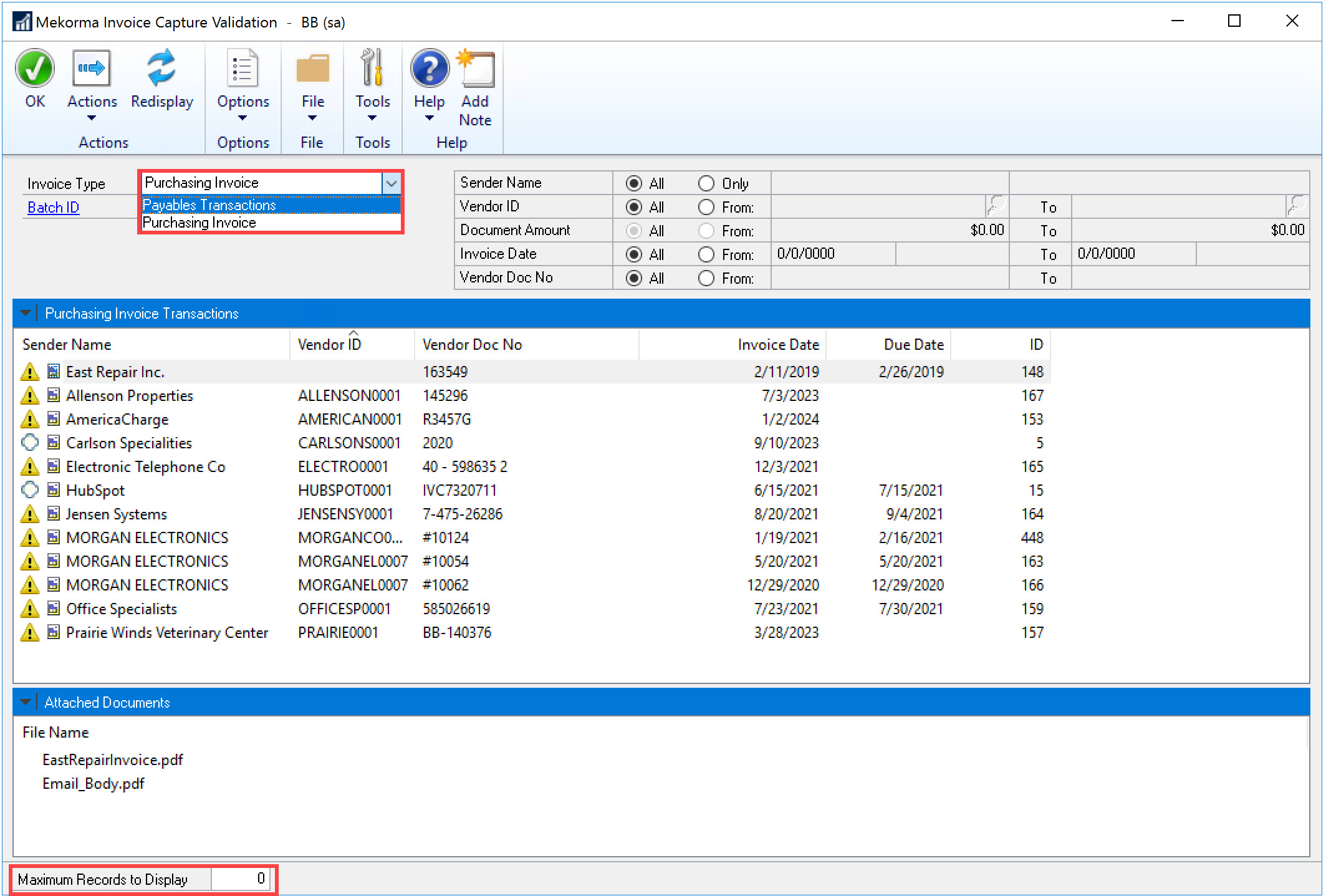
This opens the Mekorma Create Payables Transactions window.
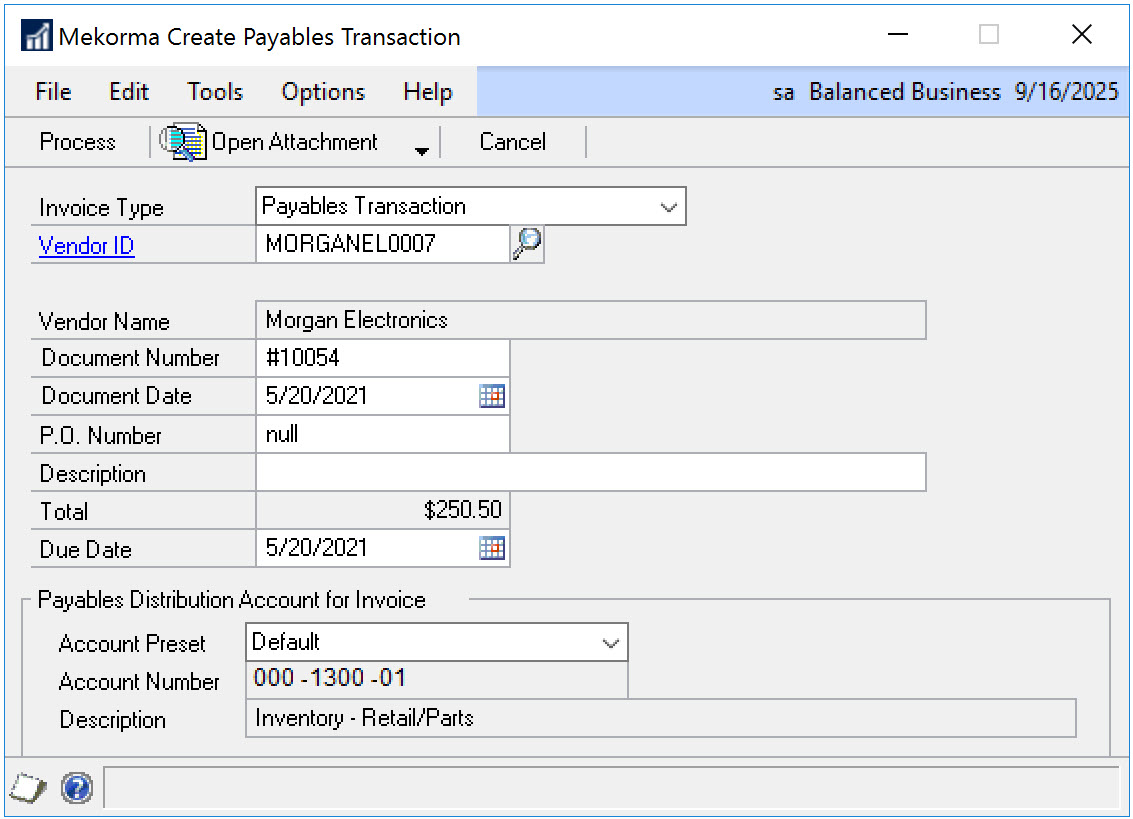
You can select an Account Preset to assign an account number to the transaction. These preset accounts are set up in the Invoice Capture Distribution Account Presets window. If you accept the default account, the account in the Vendor Account Maintenance window will be used. If an account isn’t assigned to the vendor record, the account assigned in the Posting Accounts Setup window is used.
After you finish organizing your attachments onto the correct invoices and reviewing the data in the Mekorma Create Payables Transaction window, click Process. This opens the Payables Transaction Entry window.
In the Payables Transaction Entry window, you can then verify your general ledger distributions, payment terms, remit-to address, and other information, before saving the invoice to a batch, posting it, or submitting it for approval.
When an invoice is saved to a batch, posted, or submitted for approval directly from the Payables Transaction Entry, the invoice documents are attached automatically to the invoice. If you are using Multi-Entity Management (MEM) integration with accounts payables, the entity ID will be associated with each payables invoice.
Note that due dates and terms discount dates are calculated with the vendor’s default payment terms when you process the invoice line to Dynamics GP. Even if the invoice has a specific due date, the vendor’s default payment terms take precedence when the voucher is created in Dynamics GP. If the payment terms are not specified for the vendor, the due date on the invoice is used.
If you’re using Multi-Entity Management (MEM) by Binary Stream®
When you’re using MEM, the Entity ID field will be displayed in the Invoice Capture Validation window and the Mekorma Create Payables Transaction window. Users can only view invoices for the entity to which they have access.
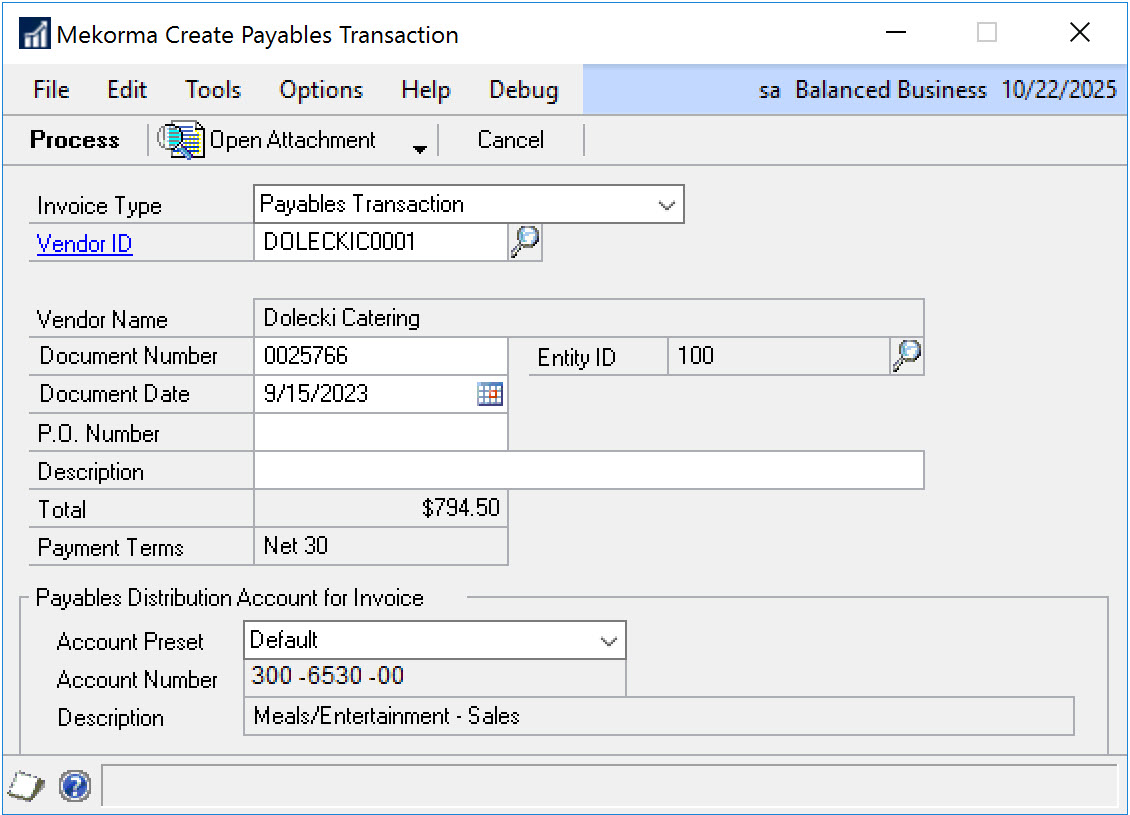
If a batch is selected, any invoice lines that do not have the same entity of the batch entity are unable to be marked.
Need more help with this?
We value your input. Let us know which features you want to see in our products.