


Use the Mekorma Invoice Capture Validation window to review incoming invoices and access additional tools for viewing or working with transaction and attachment information.
Available Options
Additional options are are found in the View menu. The table below explains the various options available from the View menu for both transactions and attached documents.

| Menu Option | Description |
|---|---|
| Payables Transaction or Purchasing Invoice | |
| Open Processing Window | If Payables Transaction is selected, opens the Mekorma Create PM Transaction window. If Purchasing Invoice is selected, opens the Mekorma Create POP Invoice Entry window. You can update or add information for the transaction. |
| Discard | Deletes the transaction from the window. |
| Mark All | Marks all the transactions. |
| Mark None | Unmarks all the transactions. |
| Update Entity ID | Opens the MEM Entity Lookup window where you can select a different entity for the transaction. |
| Attached Documents | |
| Open | Opens the selected attachment. |
| Create New Invoice | Creates a line item that you can use to create a new transaction. |
| Discard Attachment | Deletes the selected attachment from the window. |
| Select this Document to move or copy | Selects the document to move or copy. For more information about this option, refer to Moving or Copying an Attachment from One Invoice to Another |
Options Button
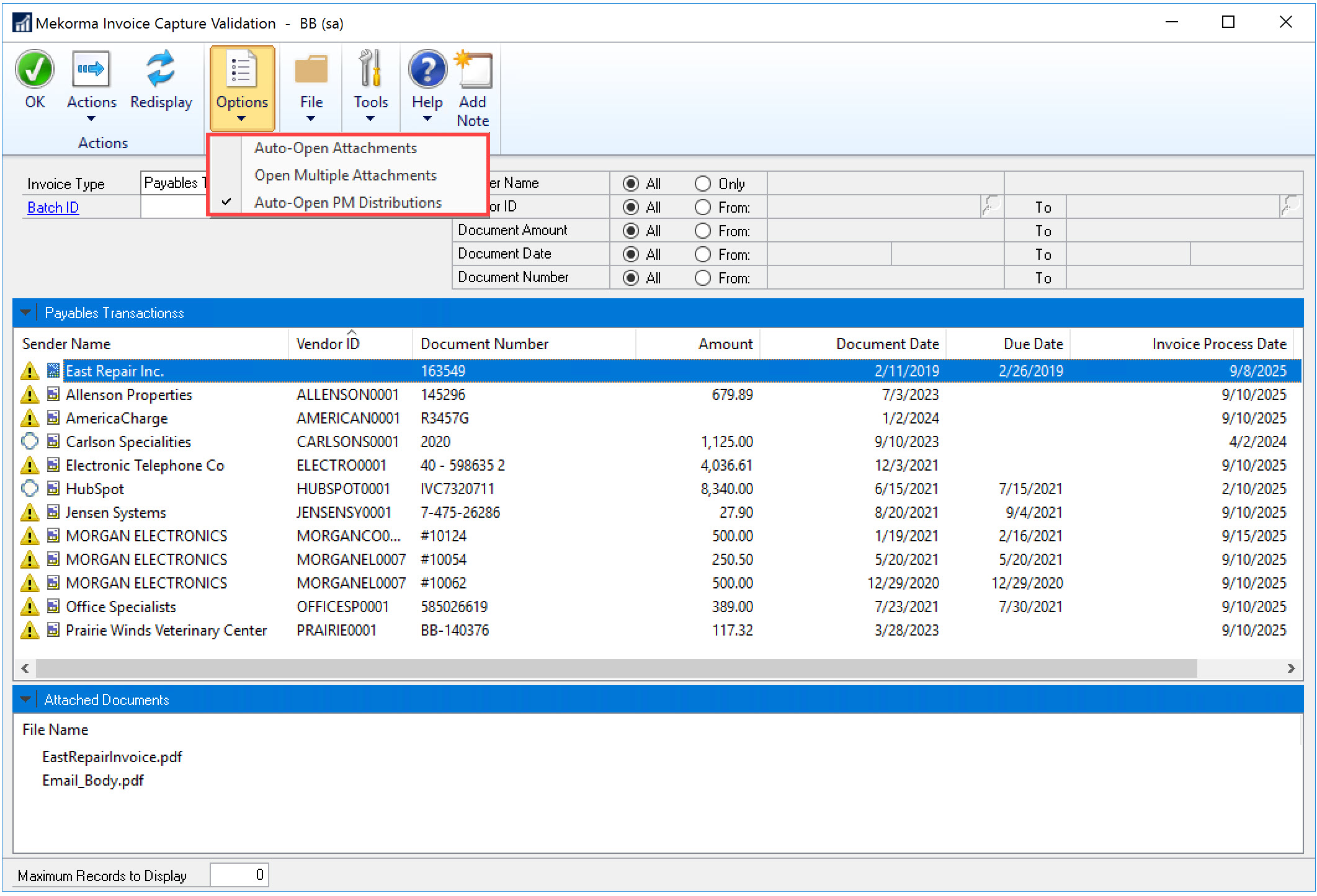
There are different ways to open attachments. Click the Options button to select the manner in which you want attachments to open. The table below explains the different ways to open attachments.
| Options Button | Description |
|---|---|
| Auto-Open Attachments | Automatically opens the attachment when you double-click on an invoice line, or right-click the invoice and select > Open Processing Window. |
| Open Multiple Attachments | Automatically opens all of the attachments when you double-click on an invoice line, or right-click the invoice and select > Open Processing Window. Each attachment is displayed in a different tab. |
| Auto-Open PM Distributions | Automatically opens the Payables Transaction Entry Distribution window below the Payables Transaction Entry window after you click Process in the Mekorma Create Payables Transaction window. This option is saved per user. |
Advanced Filters
The table below explains the advanced filters available. After you enter or select the filter, click Redisplay to refresh the invoice list.

| Filter Option | Description |
|---|---|
| Sender Name | Enter part of a sender name to restrict invoices to those that match. |
| Vendor ID | Select a vendor in the From and To fields to display invoices from those vendors. |
| Document Amount | Enter an amount in the From and To fields to display invoices with document amounts in that range. This field is available only for Payables transactions. |
| Document Date | Enter or select a date in the From and To fields to display invoices with document dates in that range. This field is available only for Payables transactions. |
| Invoice Date | Enter or select a date in the From and To fields to display invoices with invoice dates in that range. This field is available only for Purchasing invoices. |
| Document Number | Enter a document number in the From and To fields to display invoices with document numbers in that range. Be aware that the Document Number field could contain letters or other characters such as dashes and hash tags. This field is available only for Payables transactions. |
| Vendor Doc No | Enter a vendor document number in the From and To fields to display invoices with vendor document numbers in that range. This field is available only for Purchasing invoices. |
Need more help with this?
We value your input. Let us know which features you want to see in our products.