


After creating a service account, it is important to assign the Azure Reader role and associate Mekorma’s Partner ID (MPN ID) with the account. This ensures that Microsoft can accurately attribute customer impact and engagement to Mekorma through the Partner Admin Link (PAL).
Completing this step enables Microsoft to formally recognize Mekorma’s contributions within customer environments, which directly supports our Solutions Partner designation and enhances our performance insights in the Partner Center dashboard.
At Mekorma, we are committed to making this process as smooth and seamless as possible for you. Our team is ready to assist you at every step of the way, from providing detailed instructions to answering any questions you may have.
If you encounter any difficulties or need assistance, do not hesitate to reach out to our support team at support@mekorma.com or 888-MEKORMA (635-6762).
- Assign the Reader Role to the Service Account
-
- Sign into the Azure portal – https://portal.azure.com using an account with administrator access.
- In the search bar, type Subscriptions and select your Production subscription.
Note: If you manage multiple Azure Production subscriptions, you will need to assign the Reader role for the service account in each subscription.
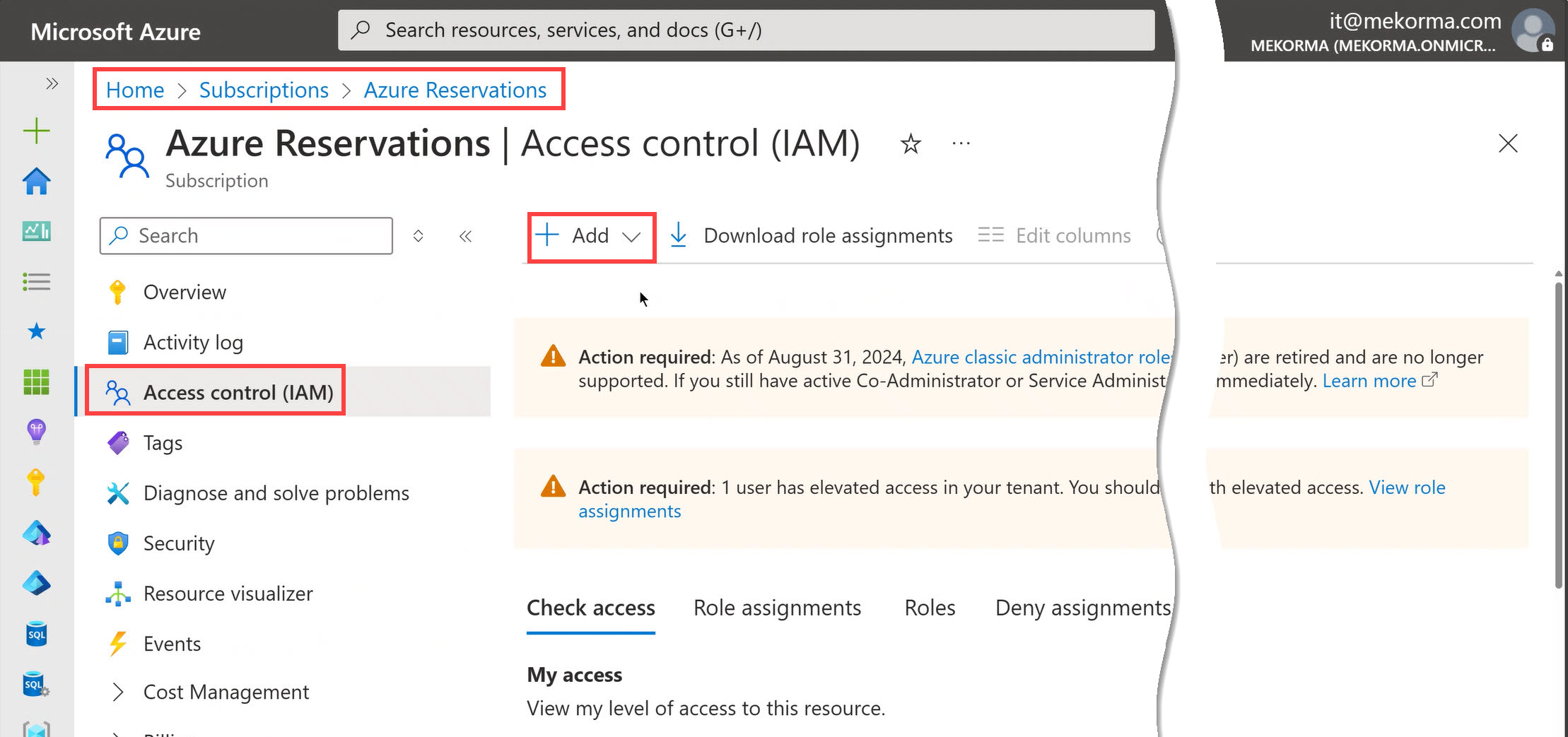
- Click Access control (IAM) > + Add > Add role assignment.
![]()
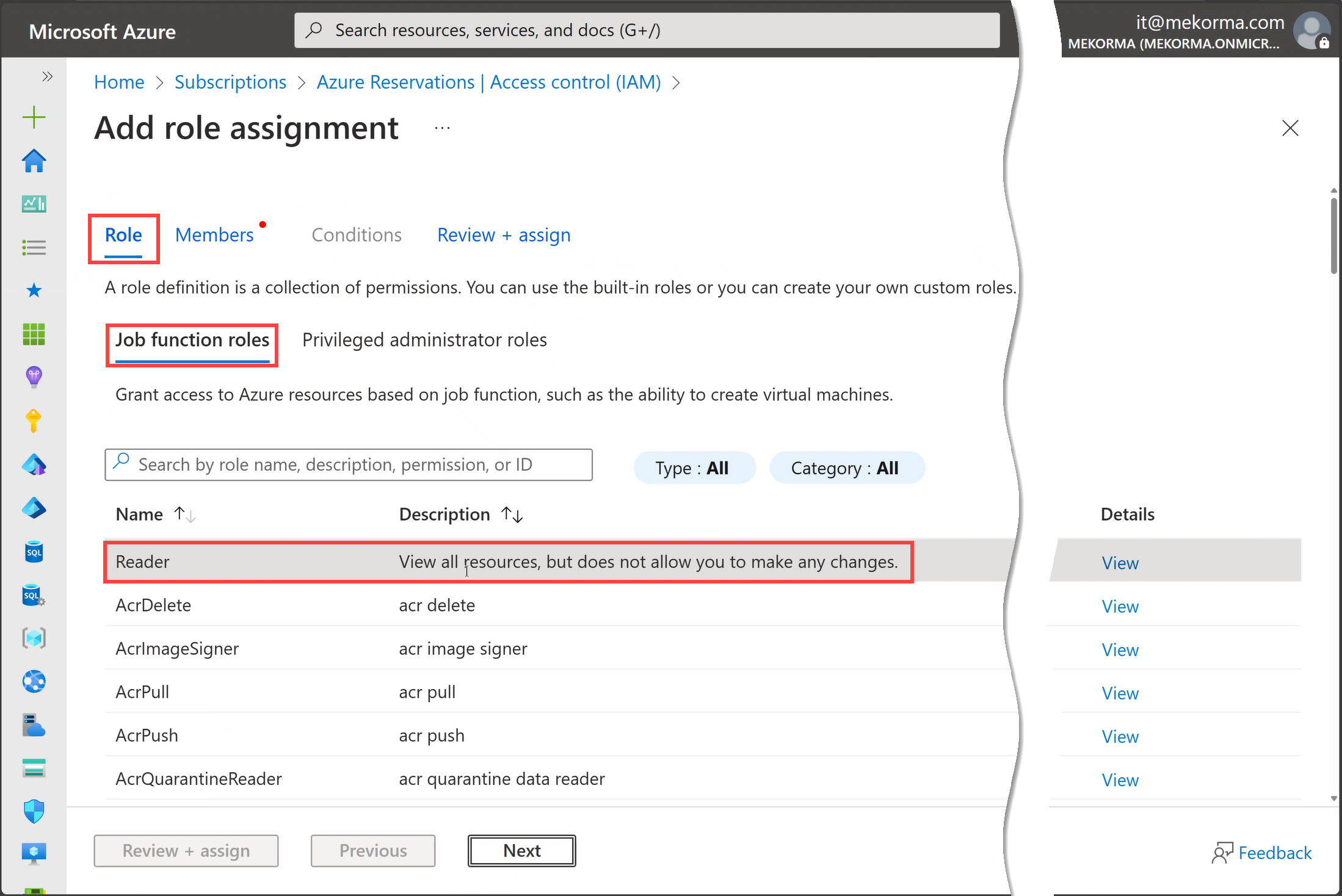
- Choose Reader as the role and click Next.
Note: This gives read-only access to view resources but not modify them.
![]()
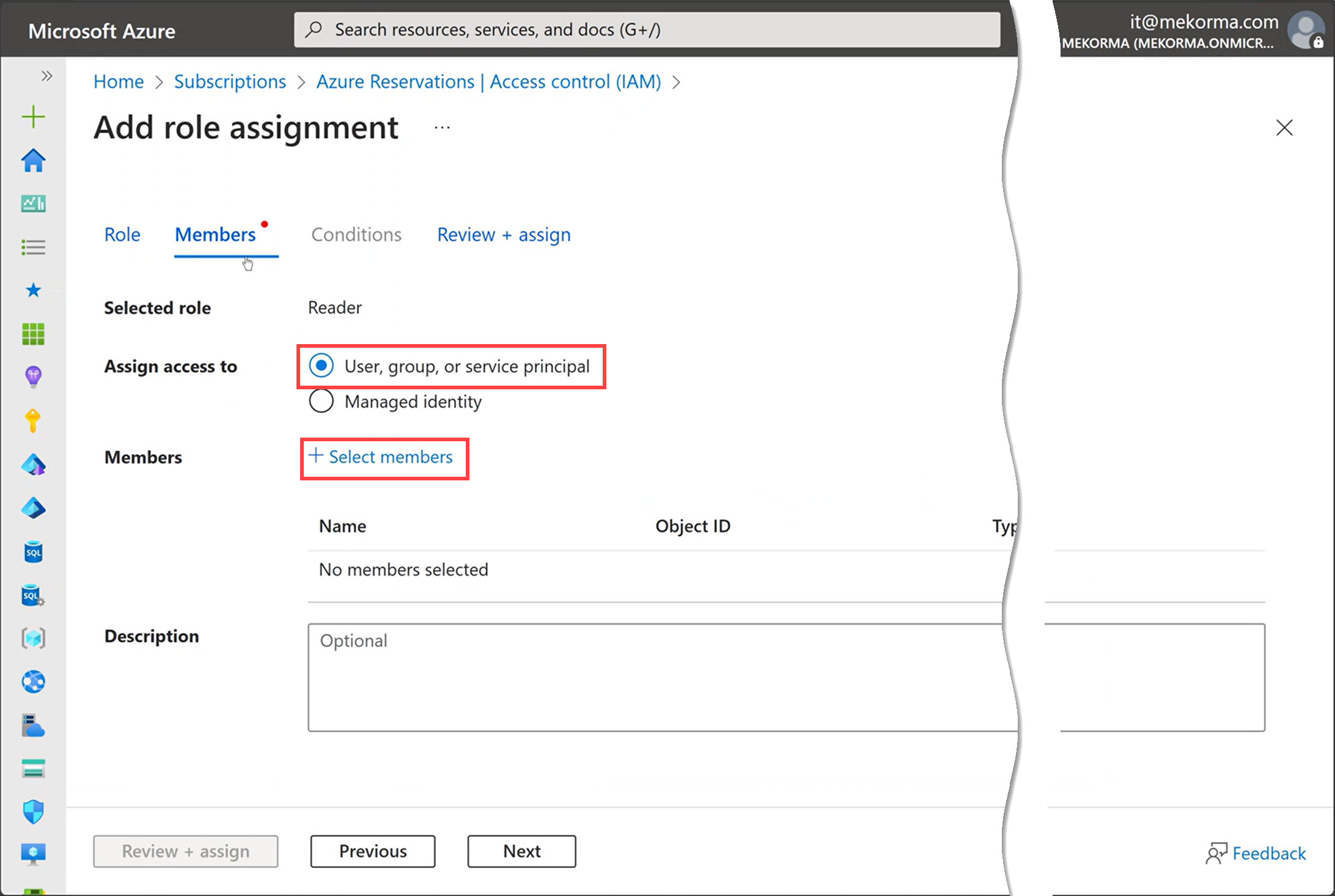
- Select to assign acces to User, group, or service principal and click + Select members.
![]()
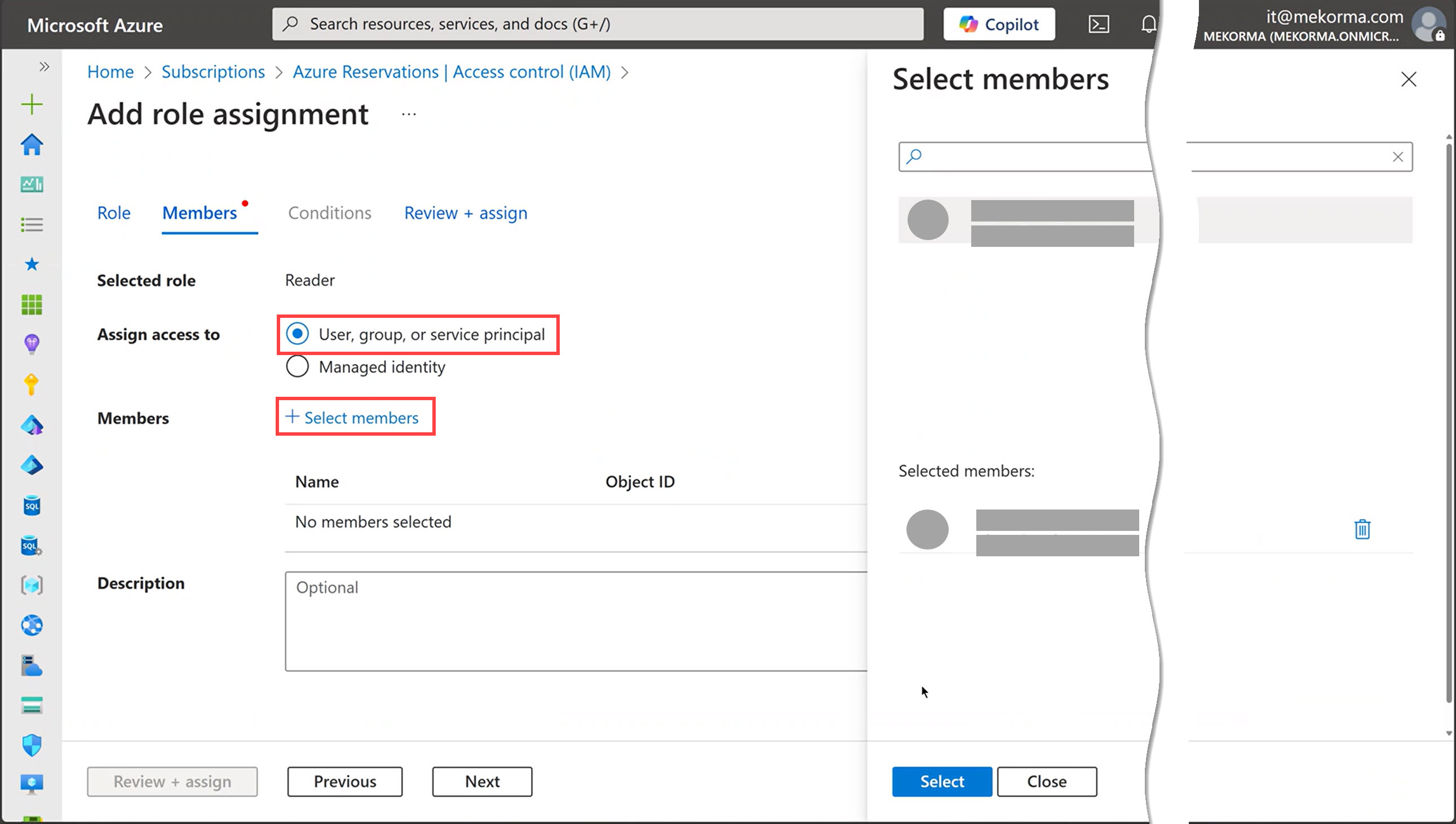
- Select the person/service principal and click Next.
Note: If you use multiple service accounts, such as one for Mekorma Mobile Workflows and one for Mekorma Invoice Capture, it’s best practice to assign the Reader role to each of them.
![]()
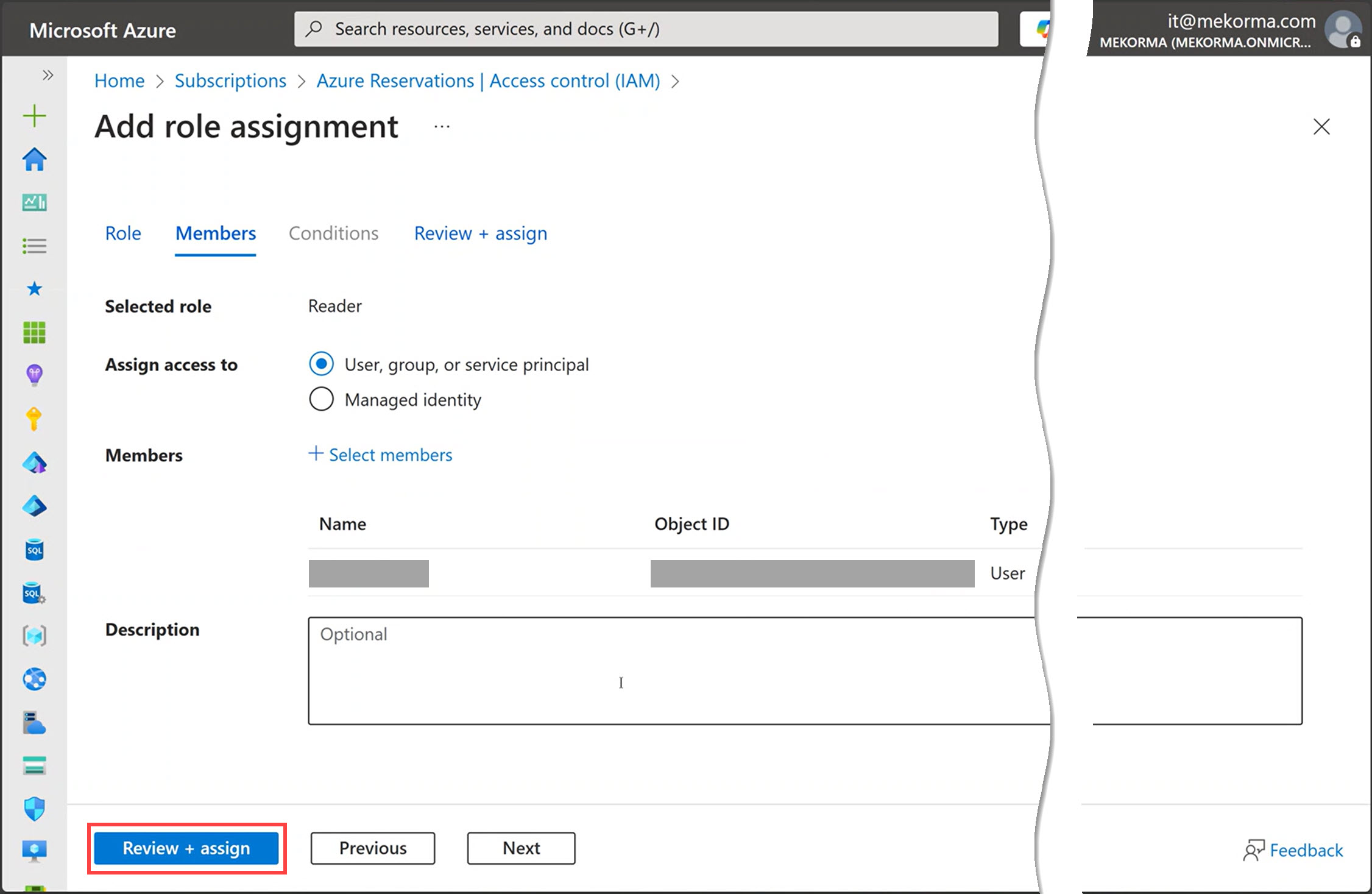
- Verify the member(s) added and click Review + assign.
![]()
After you’ve added the Reader role to the service account, associate the service account with the Mekorma Partner ID.
- Sign into the Azure portal – https://portal.azure.com using an account with administrator access.
- Associate the Service Account with Mekorma Partner ID
Associating with Mekorma is a simple and easy process that our customer can do within their Azure Portal. It is called Partner Admin Link (PAL) and it takes less than 30 seconds!
Follow the two steps below to complete your Customer Association with Mekorma!
- Visit Link to a Partner ID in the Azure Portal and sign in as the owner of the Mekorma Power Apps. Typically, the account is named svc_powerapprovals@yourcompany domain.com.
- Enter Mekorma’s Microsoft Partner ID: 719878 and link the ID.
- Visit Link to a Partner ID in the Azure Portal and sign in as the owner of the Mekorma Power Apps. Typically, the account is named svc_powerapprovals@yourcompany domain.com.
Need more help with this?
We value your input. Let us know which features you want to see in our products.