


The Mobile Workflows solution package needs to be imported into the Power Apps cloud. Do not unzip the solution package after it is downloaded.
Use the following instructions to import the Mekorma Mobile Workflows solution.
- Open your browser in incognito mode, go to the Power Apps website, and log in with the service account. It might look something like this: svc_mobileworkflows@mycompany.com.
- Make sure that you are in the right environment. The name is on the purple bar at the top middle-right.
![]()
- Click Solutions and then click Import solution.
![]()
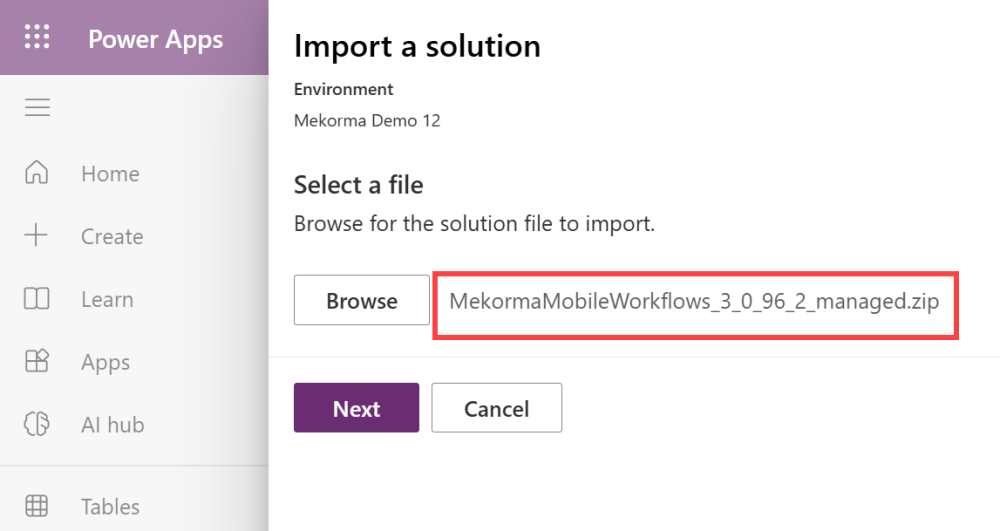
- Browse to select the Mobile Workflows solution zip file and click Next.
![]()
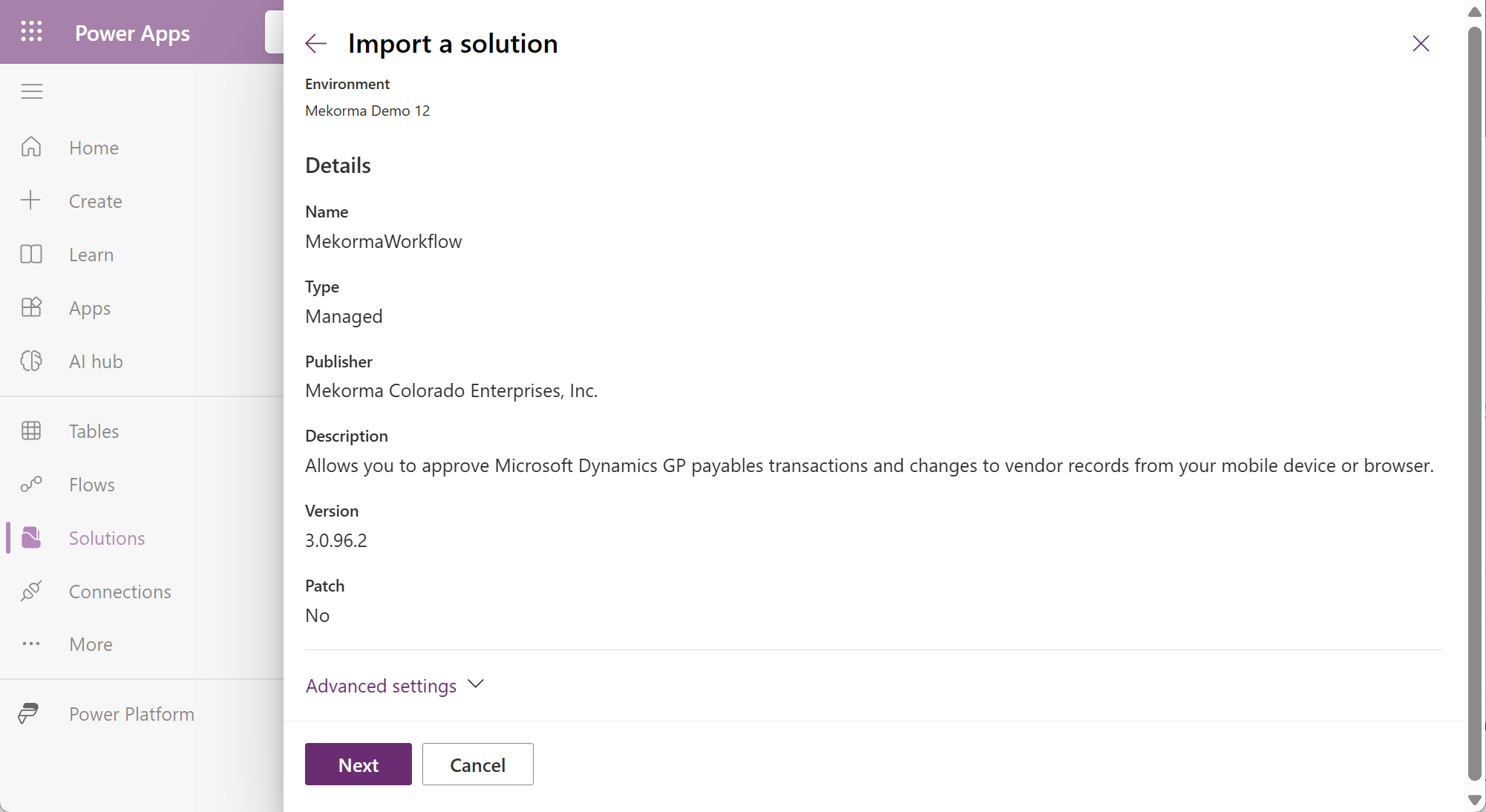
- In the Import a solution panel, click Next.
![]()
- Importing the package will take a few minutes. Do not navigate away from this page during the process.
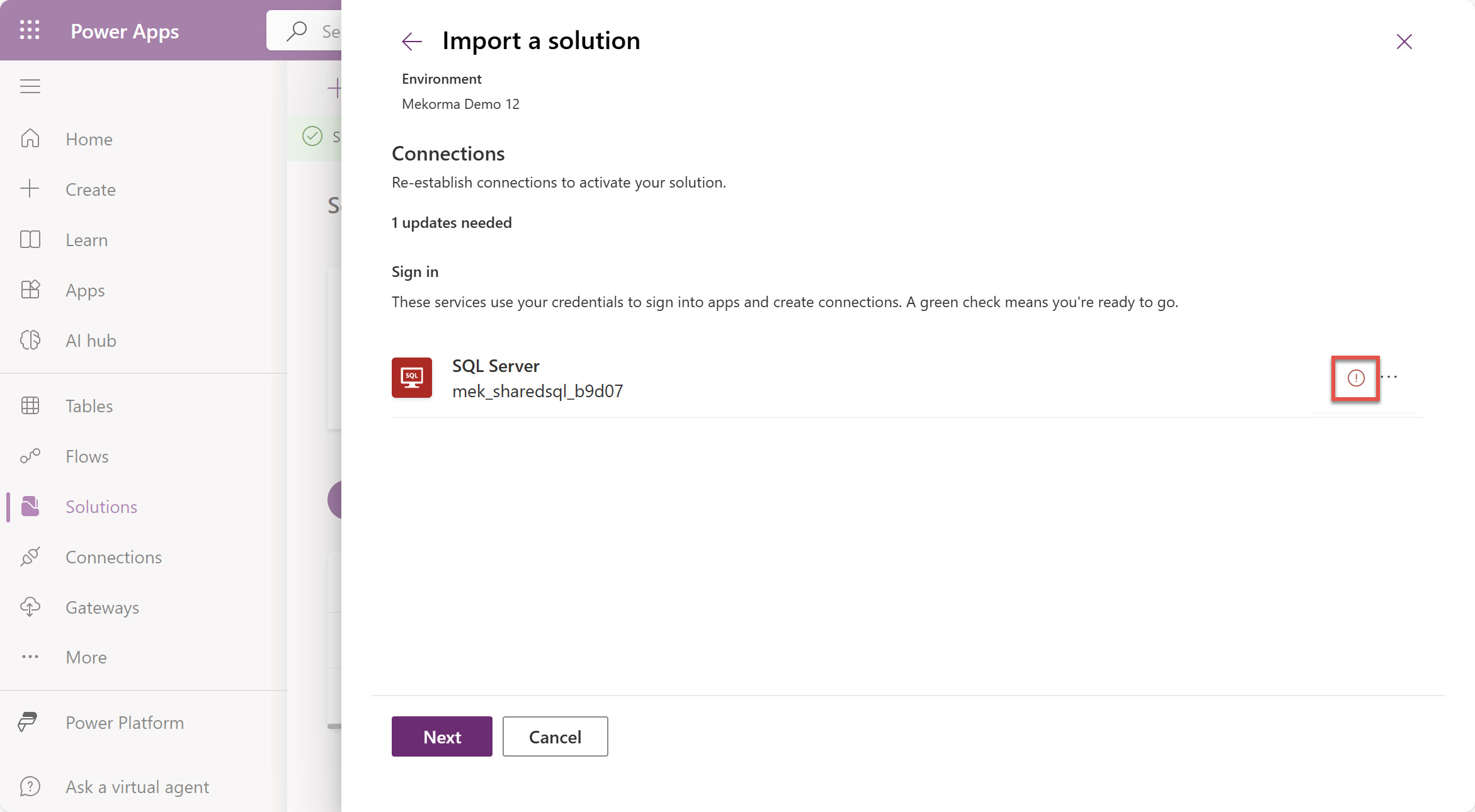
- The solution will establish connections. Services with a green checkmark are ready to go. Click Next.
![]()



If there is a red circle with an exclamation point for the SQL server, click the ellipsis to select the correct connection. NOTE: If you do not have a SQL Server connection already created, you can create the SQL Server connection using the ellipsis, but then you must click the back arrow and then click Next to reload connections.
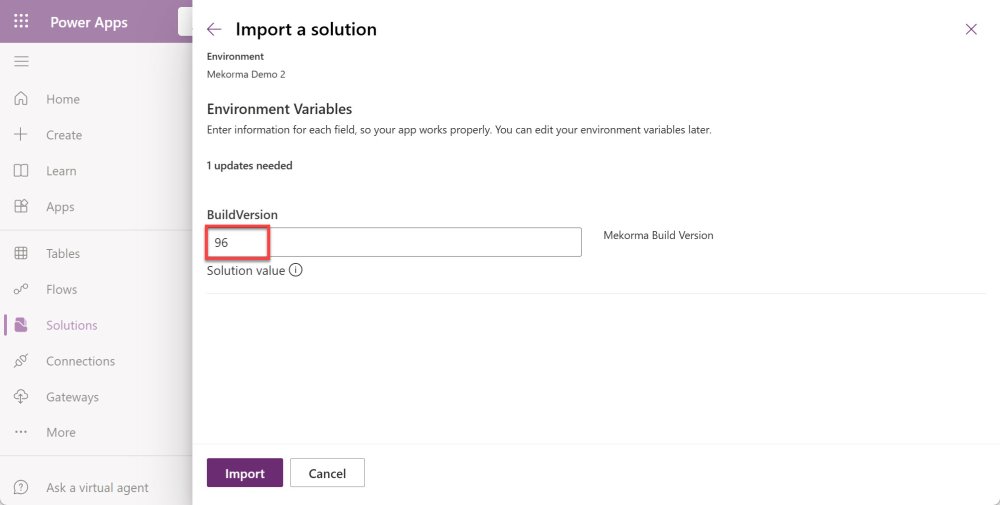
- Enter the version of Mekorma that you are using. Click Import.
![]()
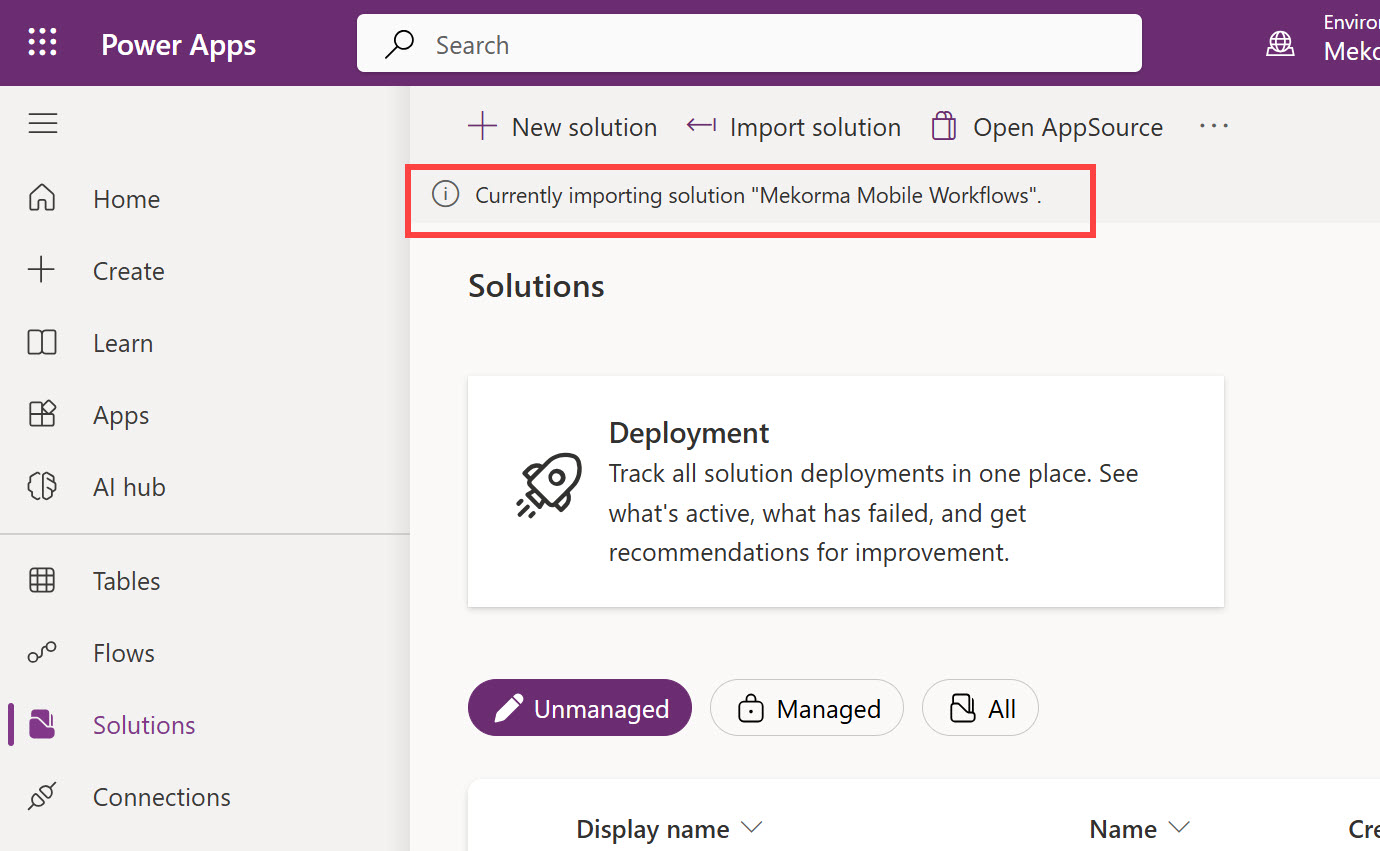
- Importing the package will take a few minutes. Do not navigate away from this page during the process. A progress indicator will be displayed at the top of the window.
![]()
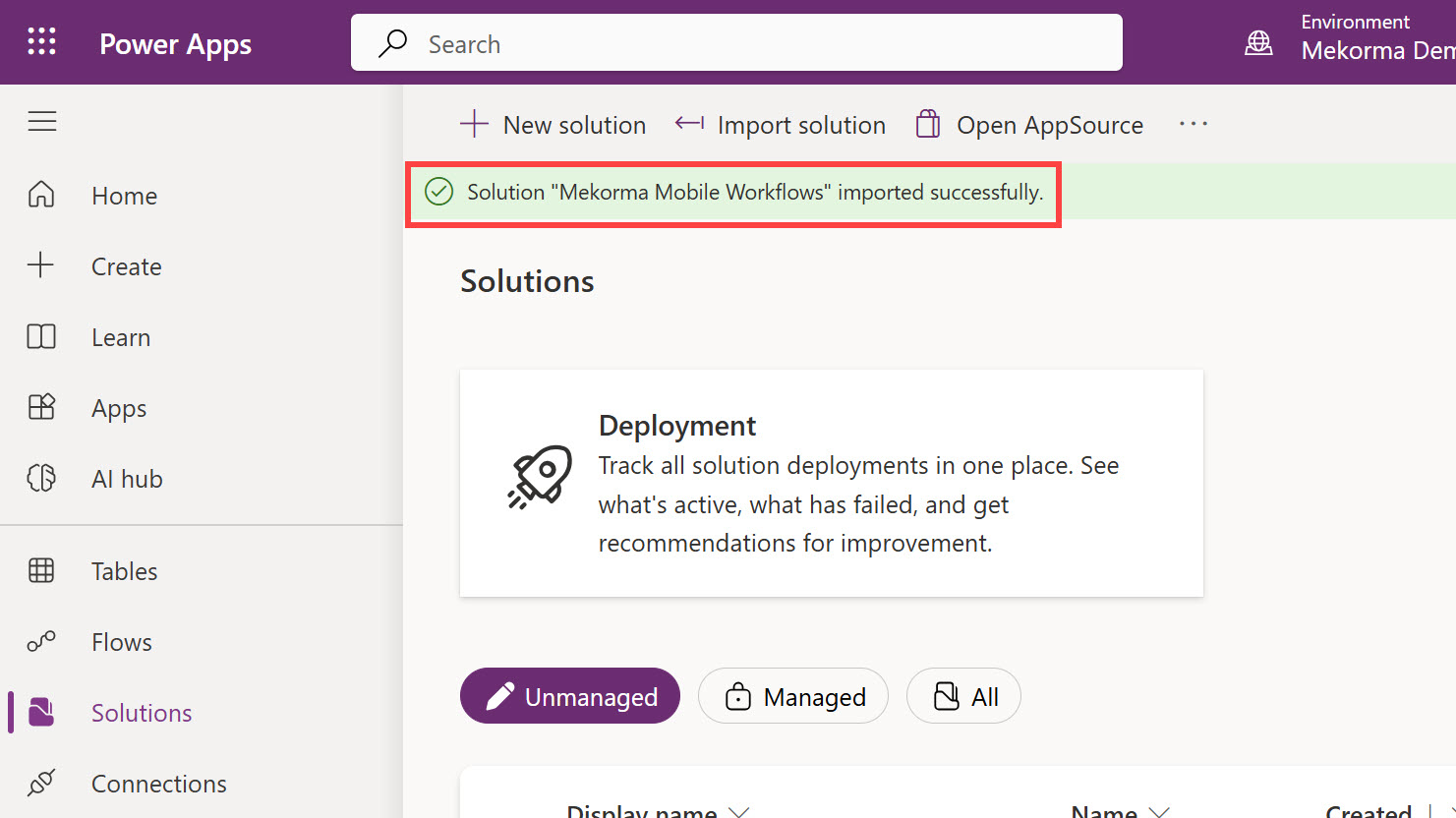
- The progress indicator will indicate when the solution is fully imported.
![]()
Last modified:
April 28, 2025
Need more help with this?
We value your input. Let us know which features you want to see in our products.