


Before you import the Mobile Workflow solution package, you must create a SQL Server proxy login.
A SQL Server proxy login is a security principal, or entity that can be authenticated by Mekorma Mobile Workflows via the SQL Server cloud connector to access Dynamics GP databases and run Mobile Workflows server-side business logic. You can create a login based on a Windows principal (such as a domain user) or you can create a native SQL Server login.
If you are going to use a domain account as your Mobile Workflows proxy account, contact your system administrator. Mekorma recommends setting up an identifiable account, such as domain\PowerApprovalsProxy.
The Mobile Workflows SQL Server proxy login does not require any special server roles. The default selection is public.
To create a SQL Server login for Mekorma Mobile Workflows, follow these steps:
- Launch Microsoft SQL Server Management Studio and log in as the sa user.
![]()

- In Object Explorer, expand the folder of the server instance in which you want to create the new login.
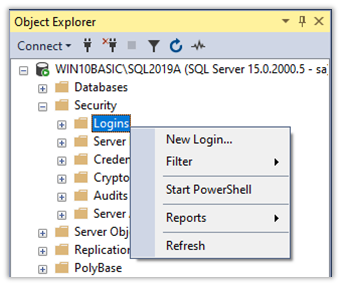
- Expand the Security folder. Right-click on Logins and choose New Login.
![]()
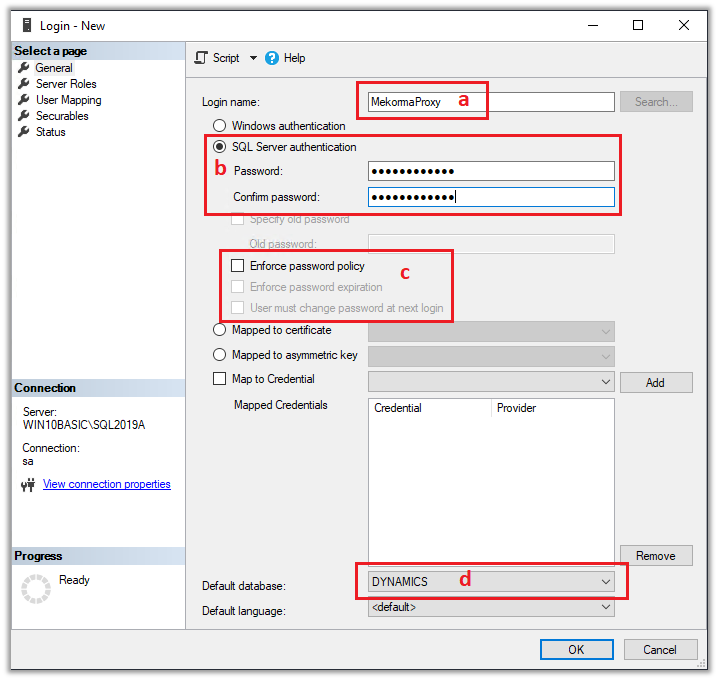
- Create the user as shown below.
![]()
- Login Name = MekormaProxy
- Mark SQL Server authentication
- Unmark Enforce password policy
- Default database = DYNAMICS
- In the left-hand navigation pane, navigate to User Mapping.
- The proxy user must have access to Dynamics GP’s system database.
- Mark the system company. Typically, this is DYNAMICS, but it may be named something else.
- In the lower section, Database Role Membership, mark DYNGRP.

- Repeat steps 1-6 for each company that will use Mekorma Power Apps.
- Mark the company database
- Mark the DYNGRP role
- Once complete, you should have something similar to the screenshot below:
![]()
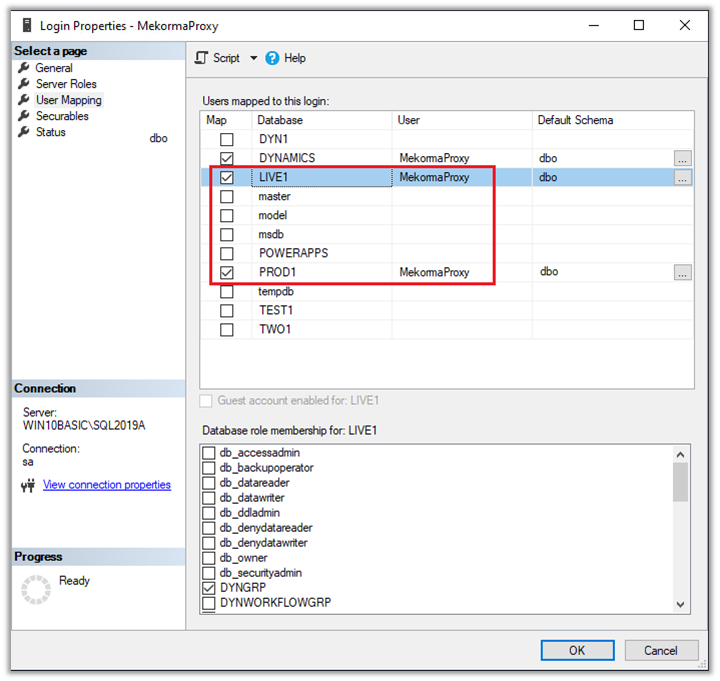
- In the example above, we have many Dynamics GP companies; however, we are restricting access to only the LIVE1 and PROD1 companies. These are the two companies that will be using the Mekorma Power Apps product(s).
- Click OK to complete the process.
Need more help with this?
We value your input. Let us know which features you want to see in our products.