


To view the information in your Dynamics GP database with Mobile Workflows, you must create a connection to your SQL Server in your Power Apps environment.
- Open your browser in private/incognito mode so that it does not cache your credentials and prevents the browser from automatically logging in with any cached accounts. Edge, Chrome, or Firefox are acceptable; do not use Internet Explorer.
- Go to Power Apps studio.
- If you have multiple environments, be sure to select the correct environment (as shown below).
![]()

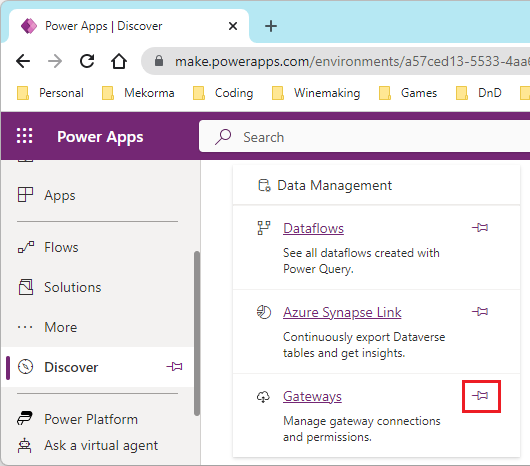
- Verify that Connections and Gateways appear under Apps. If they do, proceed to step 5; otherwise, follow the steps below to pin them.
![]()
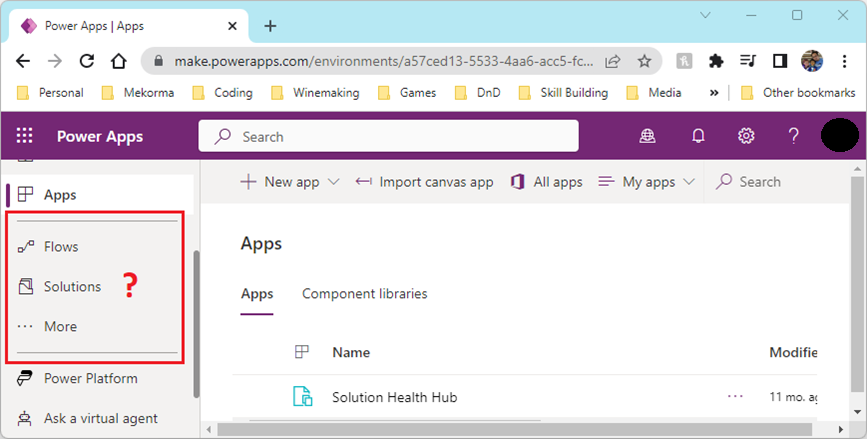
a. Pin Connections by clicking on More and scrolling to find Connections. Use the pin icon to add it to the navigation pane.
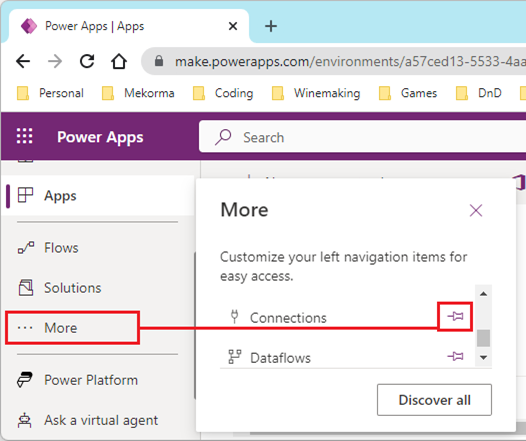
b. Pin Gateways by clicking More and then Discover all. Next, open Data Management and locate Gateways. Use the pin icon to add it to the navigation pane.
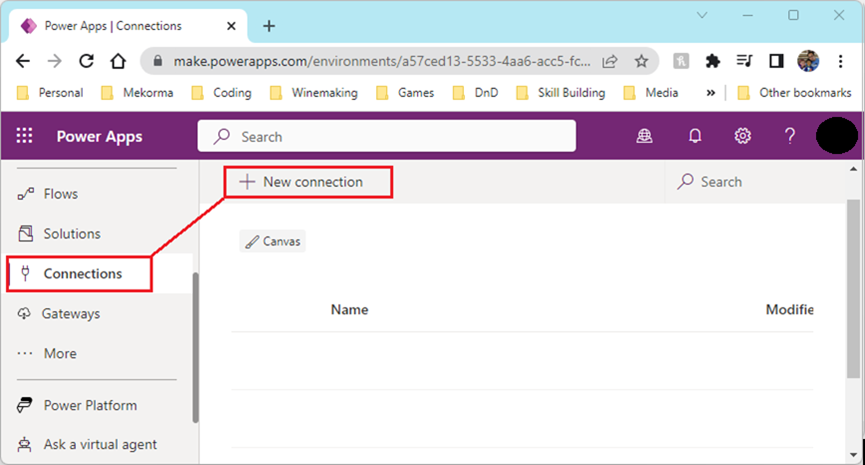
- Click Connections and then + New Connection.
![]()
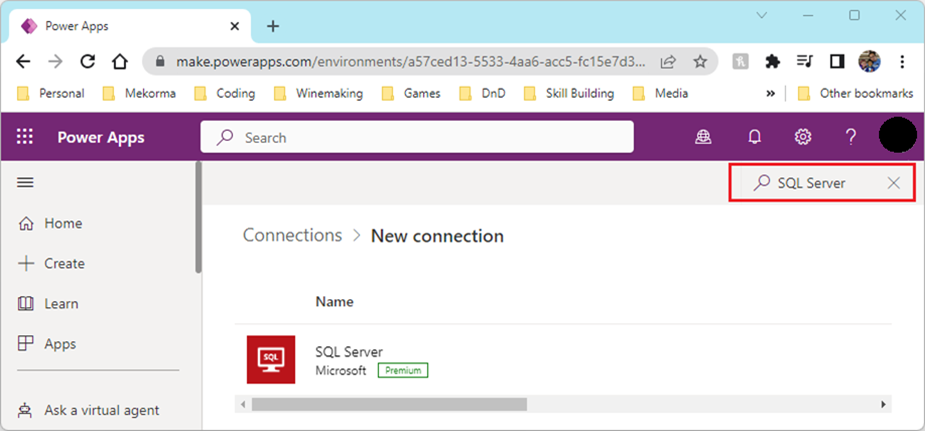
- Locate the SQL Server premium connector (by Microsoft) in the list of connectors. If you can’t find it, use the search (as shown below). Click on the SQL Server connector.
![]()
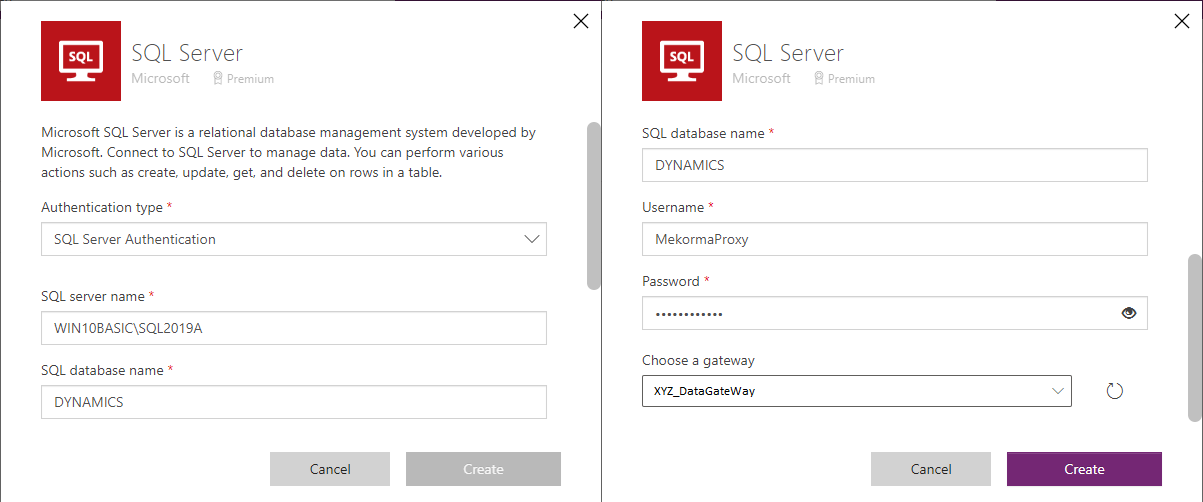
- Enter login credentials as shown below.
![]()
Field Description Authentication type Select SQL Server Authentication. SQL server name This is the name of the server machine that is hosting your on-premises date gateway. SQL database name This is DYNAMICS. If you changed the Dynamics GP system database name, enter the updated database name here. Username Enter the SQL proxy user that was created in the previous section. Typically, this is MekormaProxy. Password Enter your password. Choose a gateway Pick the gateway that you set up previously. This is typically XYZ_DataGateWay, where XYZ is the acronym of your company.
- Click Create to finish the setup.
Last modified:
March 13, 2025
Need more help with this?
We value your input. Let us know which features you want to see in our products.