


The first part of the installation includes the Dynamics GP component. After that component is installed, you need to process Mekorma table maintenance.
Installing the Dynamics GP Component for Mobile Workflows
Use these directions to upgrade the Dynamics GP component of Mobile Workflows.
- If this is an App Server, be sure that all users are out of Dynamics GP.
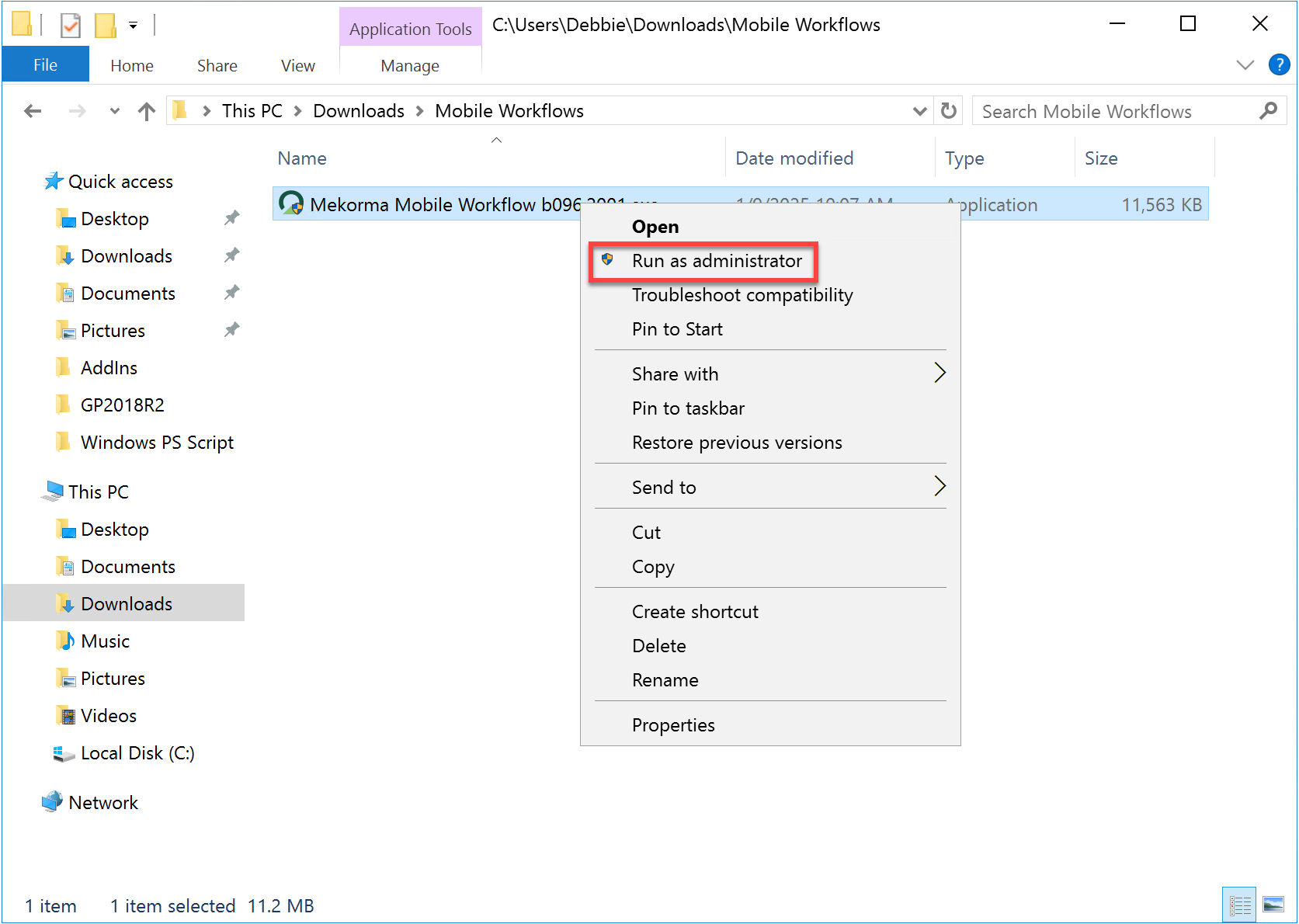
- Locate the installation file and run it in administrator mode and click Yes to continue.
![]()
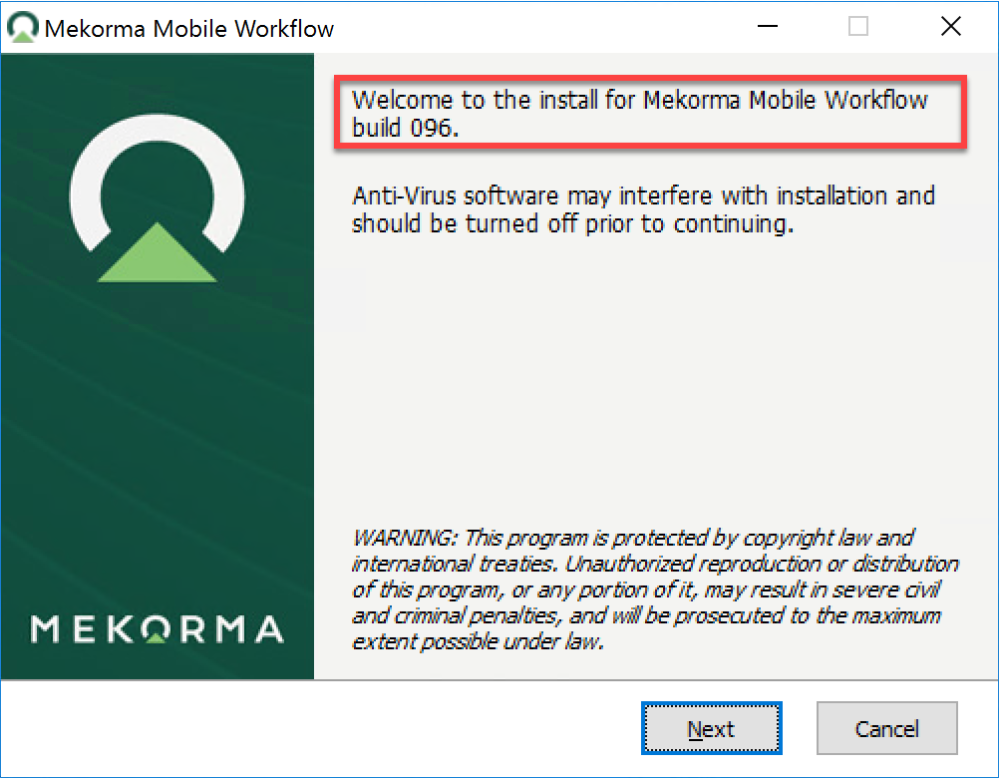
- Be sure to install the correct build. Click Next.
![]()
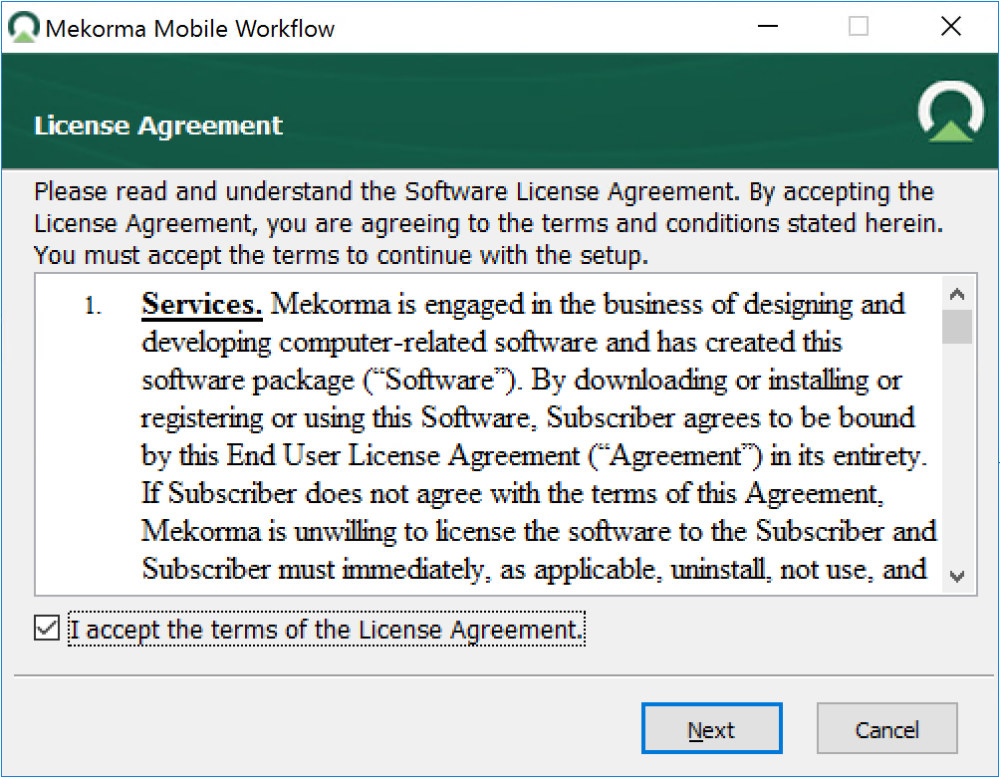
- Accept the License Agreement and click Next.
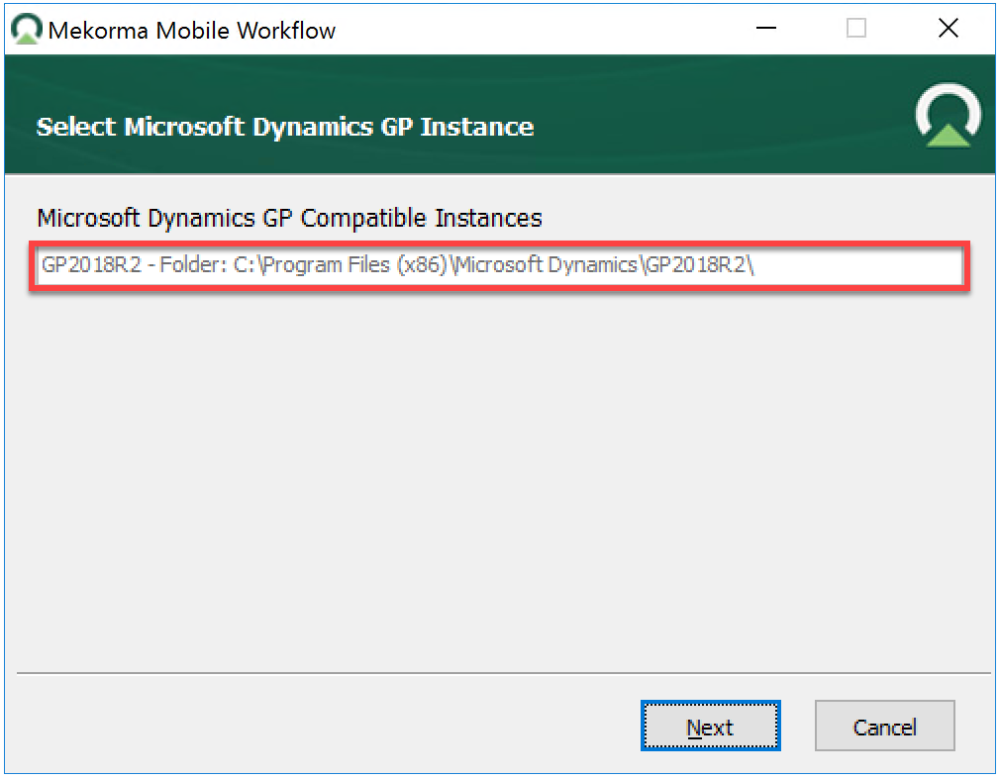
- Review the installation path. If you have multiple instances of Microsoft Dynamics GP installed, be sure the correct path is used. Click Next to continue.
![]()
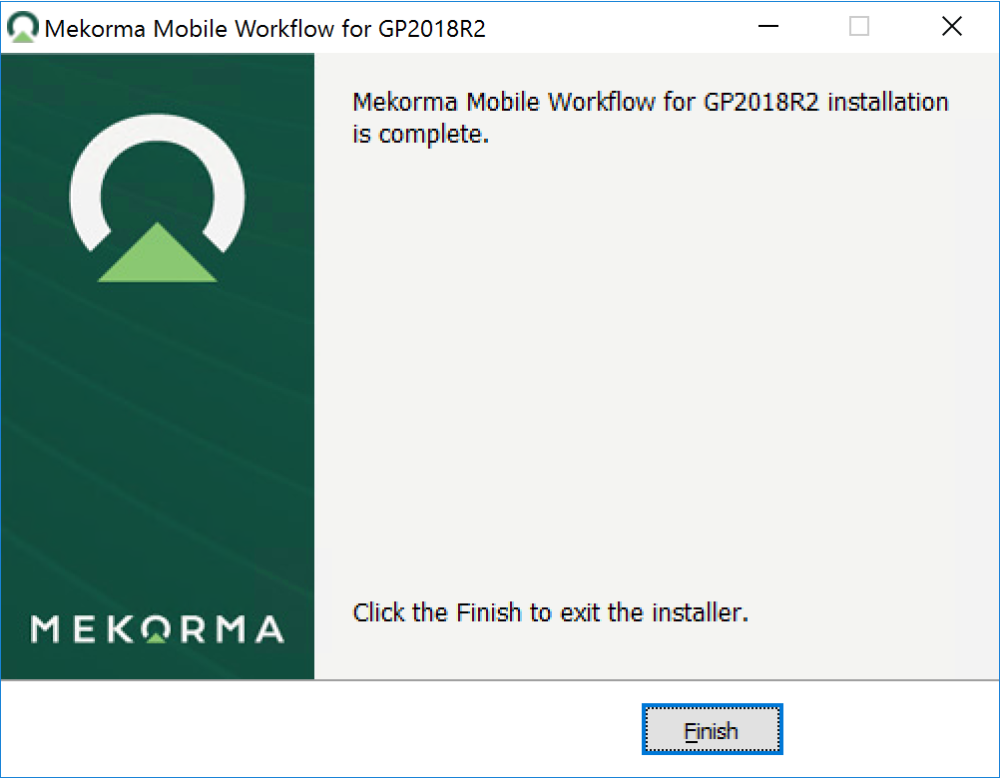
- When the installation is complete, click Finish.
![]()
Processing Table Maintenance
Use these directions to process table maintenance after upgrading the Mobile Workflows component for Dynamics GP.
- Start Dynamics GP and log in as sa. The following message will be displayed.
![]()
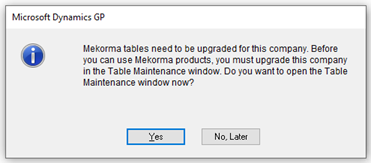
- Click Yes.
- When the Mekorma Product Table Maintenance window opens, mark all your companies. Alternatively, you can mark only the companies where you’ll be using Mobile Workflows.
![]()
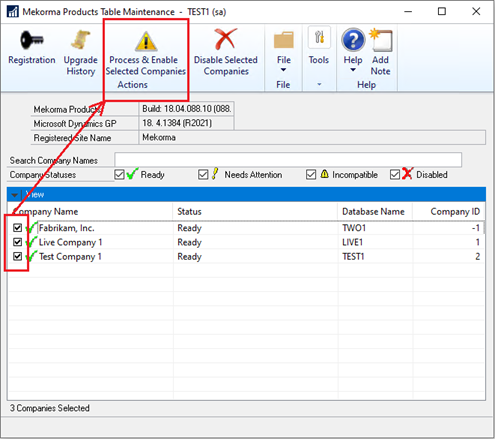
- Click Process & Enable Selected Companies to create/update tables.
- Once the process is complete, restart Dynamics GP.
Last modified:
March 20, 2025
Need more help with this?
We value your input. Let us know which features you want to see in our products.