


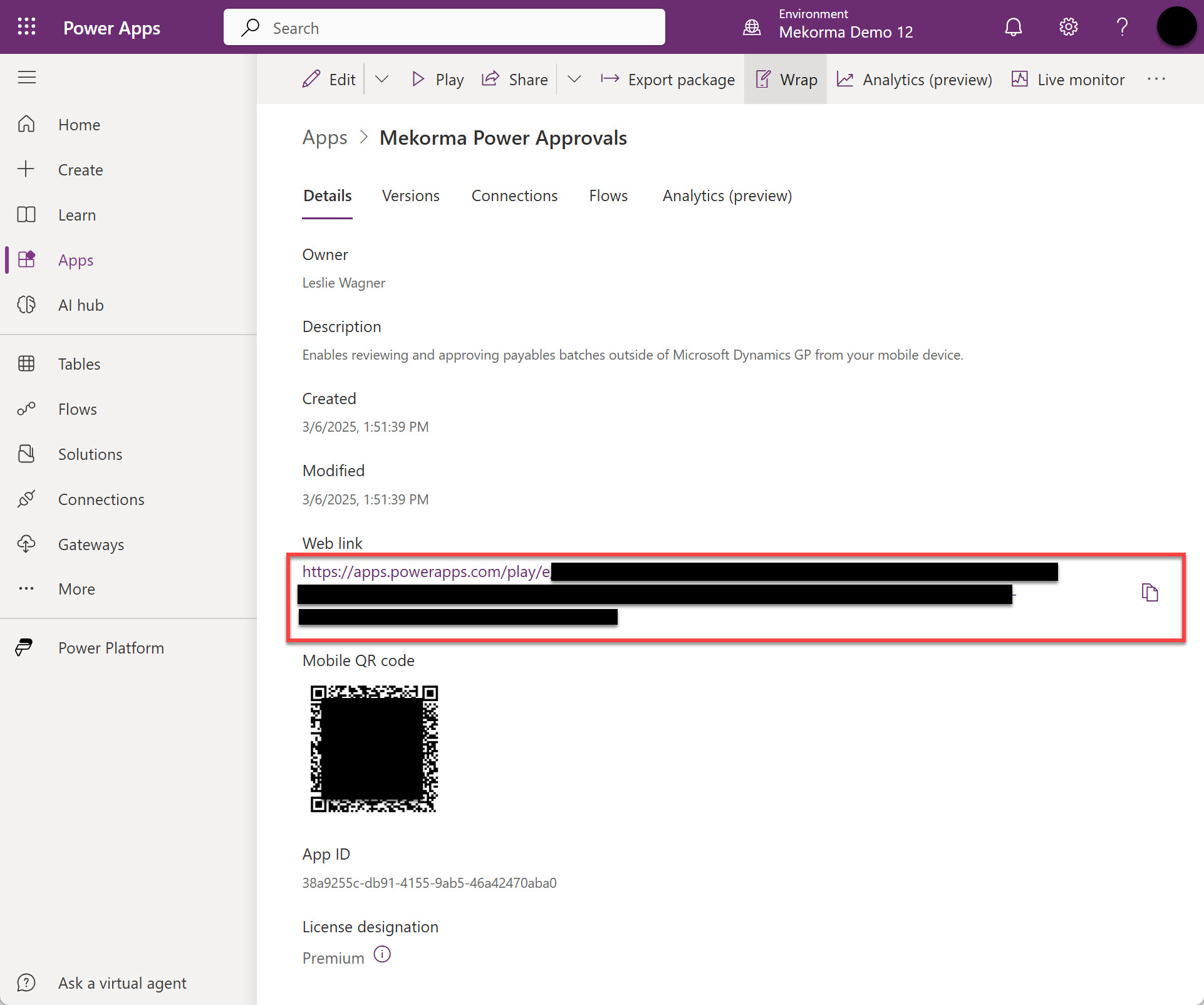
The application web link and QR code allow you to share the app with your approvers. Opening the link or scanning the QR code takes users to the Power Approvals app in either their browser or their phone. Follow the steps below to obtain your web link and QR code.
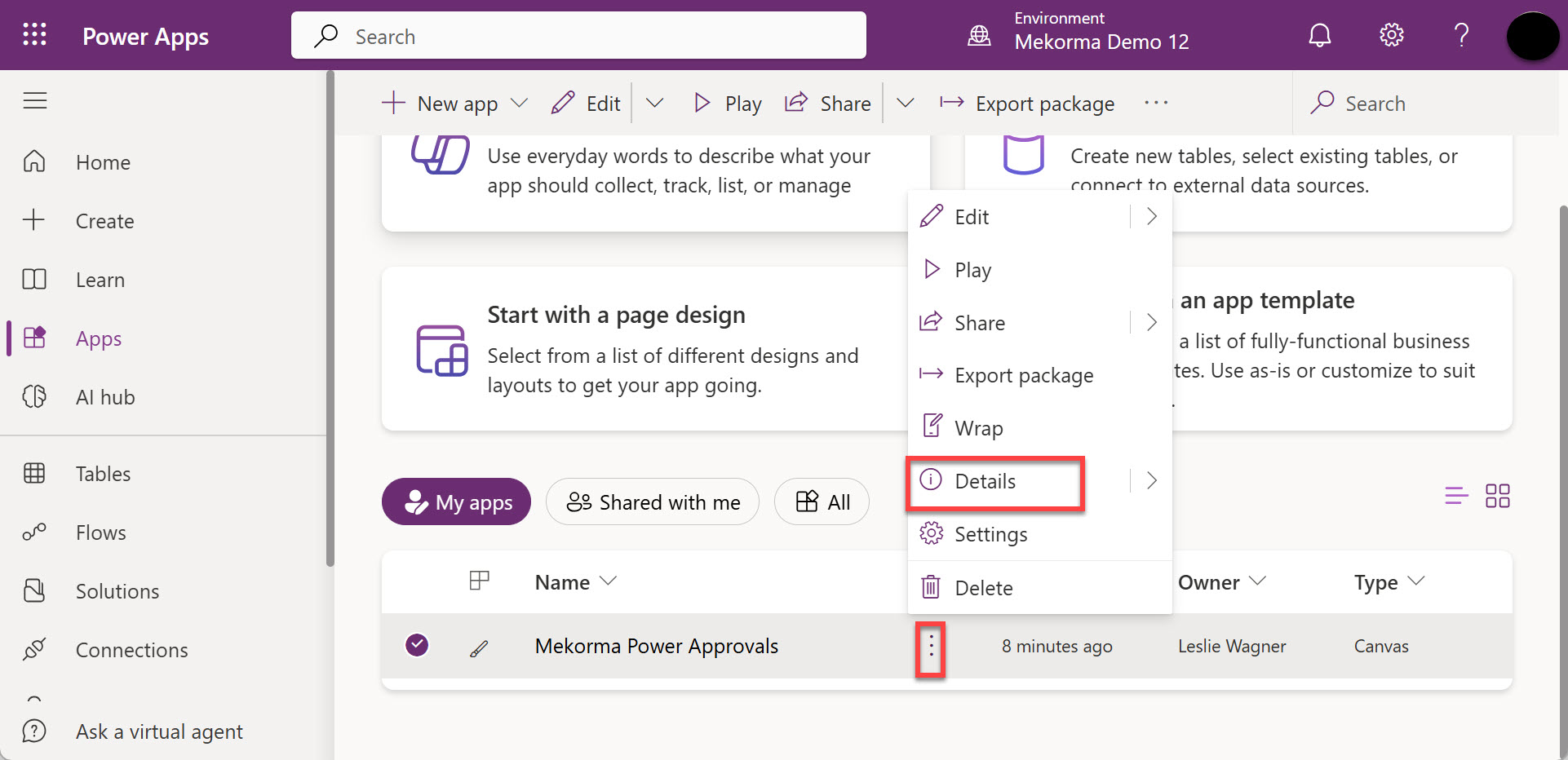
- In your Power Apps environment, click Apps. Click the ellipsis the the right to Mekorma PowerApprovals and select Details.
![]()
- The web link and QR code are located in the Details section of the app. Mekorma recommends saving the web link and QR code for record keeping purposes.
![]()
Saving the web link in Dynamics GP
The Power Approvals web link is integral to the approval workflow, as the link is included in the approval emails that are sent out when a batch approval has been requested. To ensure that Power Approvals operates correctly, the web link needs to be saved in the Approval Email Setup window in Dynamics GP.
- Log in to Dynamics GP with a user that has access to the Mekorma Payment Hub setup windows.
- Open the Security Setup (Setup > System > Security Setup).
- Click Approval Email Setup on the ribbon of the Mekorma Security Maintenance window
- Enter the web link in the PowerApproval Web Link field of the Approval Email Setup window.
![]()
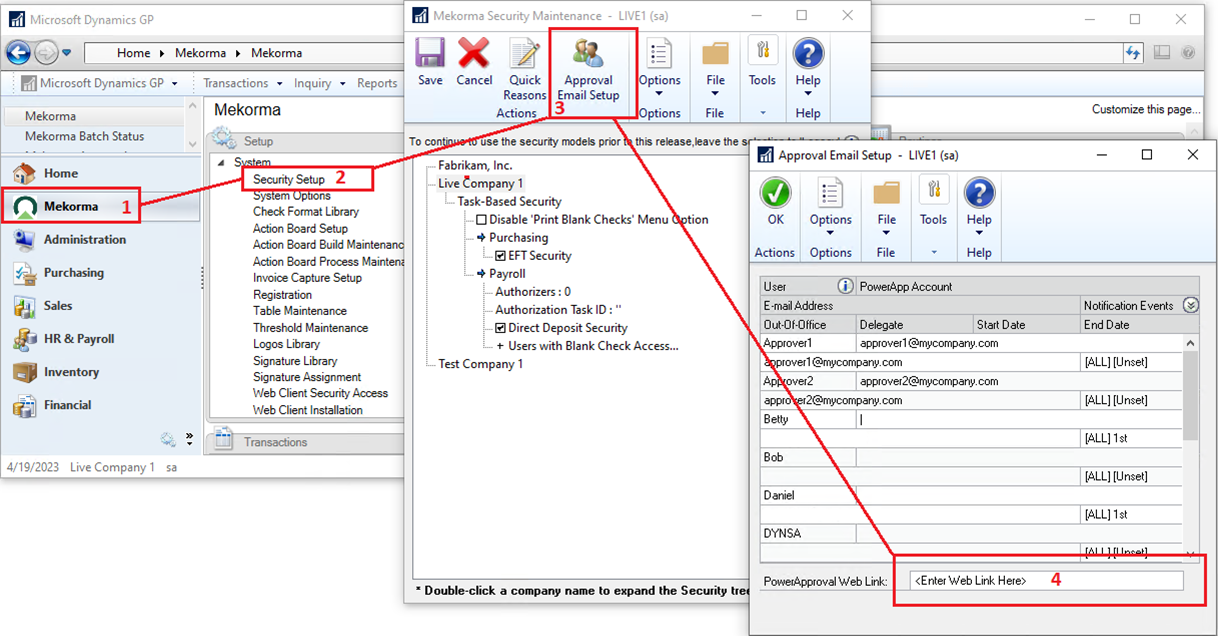
- Click OK to finish the setup.
Last modified:
March 11, 2025