


The Mekorma Power Approvals upgrade will be using the following components that you’ve already setup from the previous installation. You do not need to recreate them.
- SQL Server Connector
- Main Outlook Connector
- Open your browser in private mode, go to the Power Apps website, and log in with the service account.
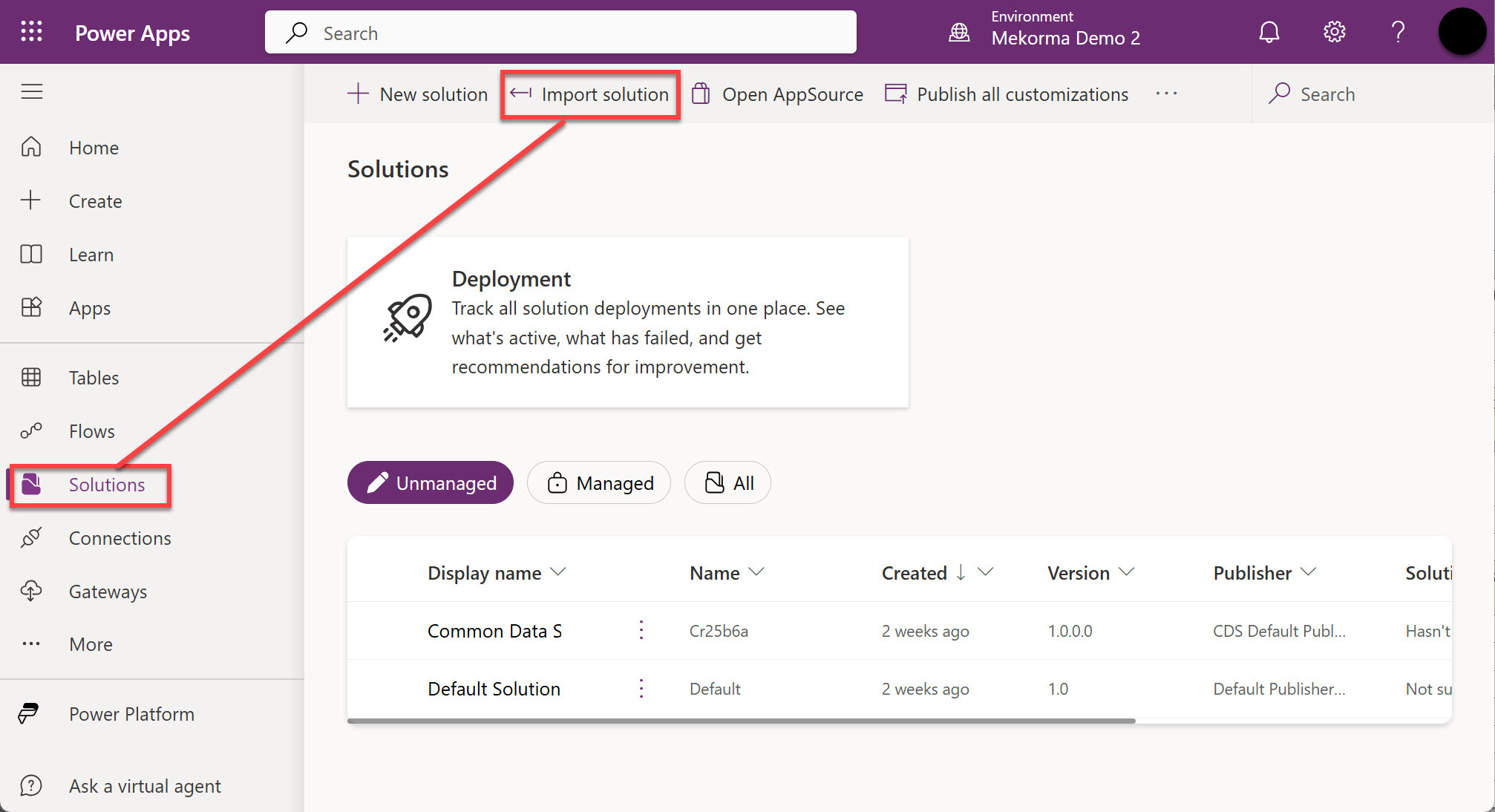
- Make sure that you are in the right environment. The name is on the purple bar at the top middle-right.
![]()

- Click Solutions and then Import solution.
![]()
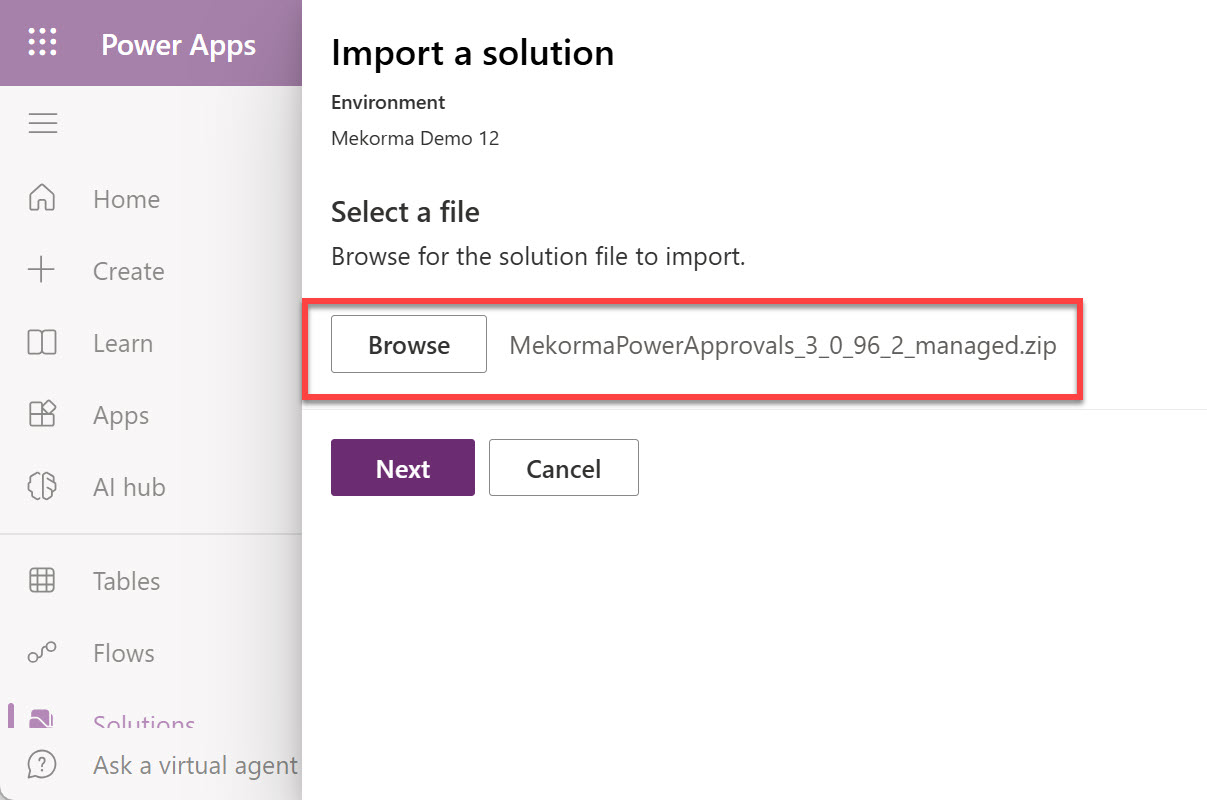
- Browse to select the Power Approvals solution zip file and click Next.
![]()
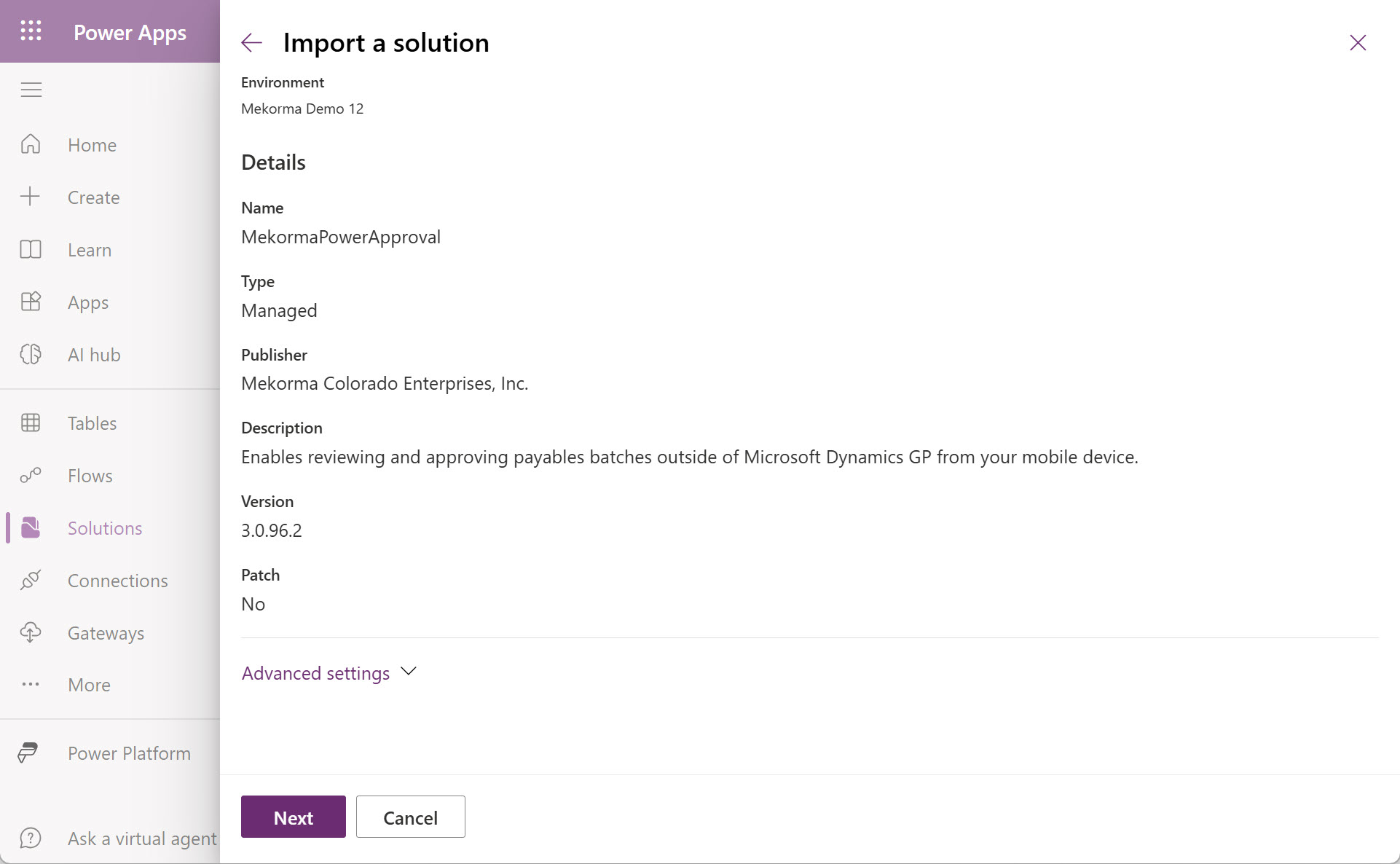
- In the Import a solution panel, click Next.
![]()
- Importing the package will take a few minutes. Do not navigate away from this page during the process. A progress indicator will be displayed at the top of the window.
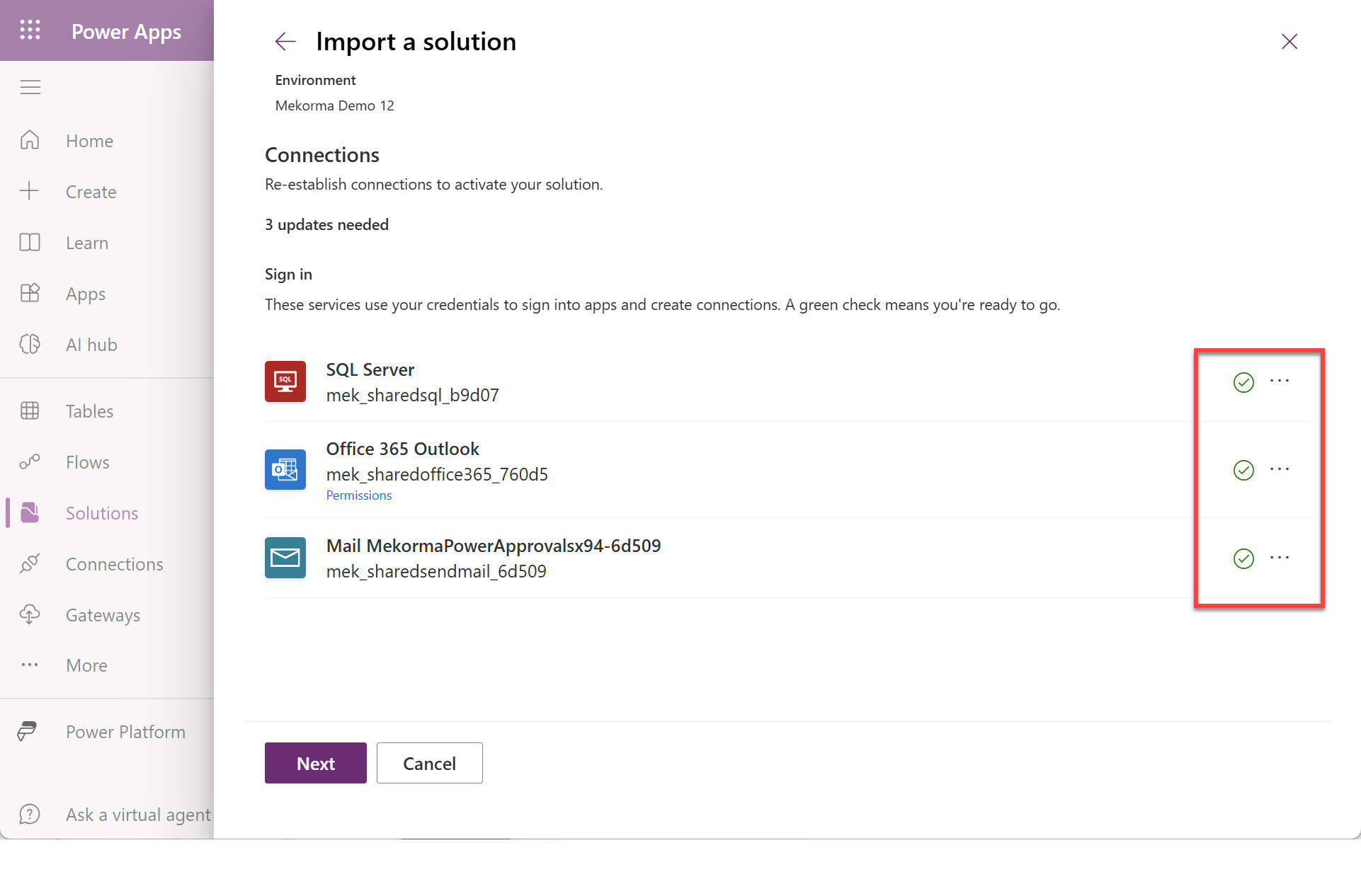
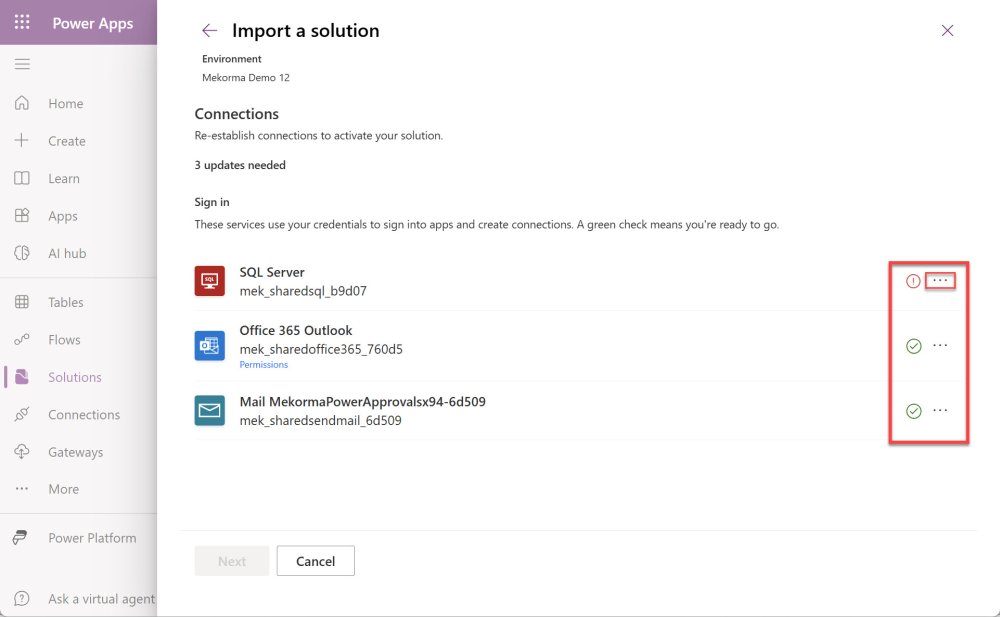
- The solution will establish connections. Services with a green check mark are ready to go. Click Next.
![]()
If there are services with a red exclamation point, click the ellipsis to select the correct connection.
![]()
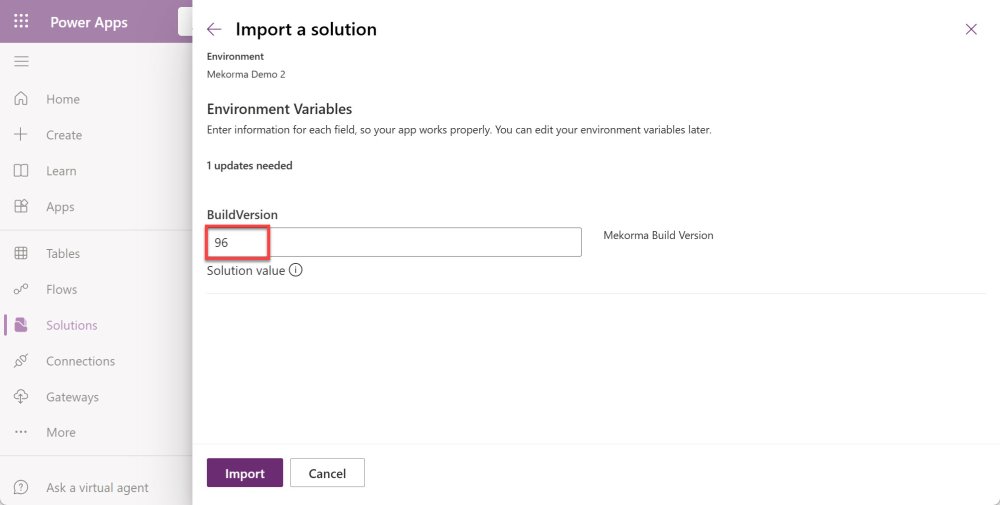
- Enter the version of Mekorma that you are using. Click Import.
![]()
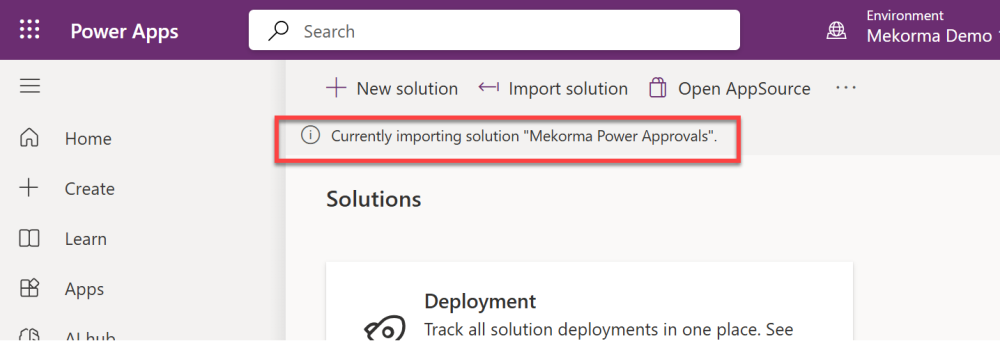
- Importing the package will take a few minutes. Do not navigate away from this page during the process. A progress indicator will be displayed at the top of the window.
![]()
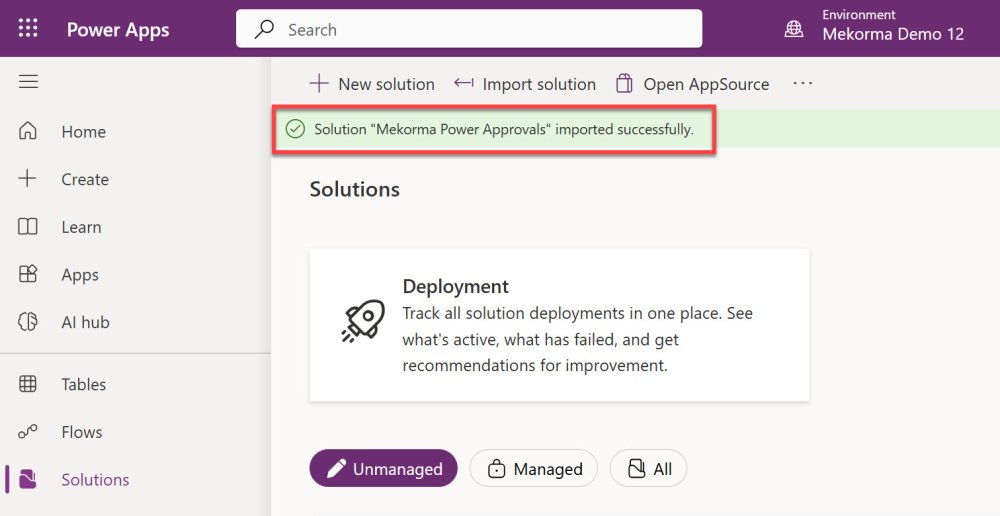
- The progress indicator will indicate when the solution is fully imported.
![]()
- Review the Created and Version columns to confirm that the latest build has been installed.
![]()
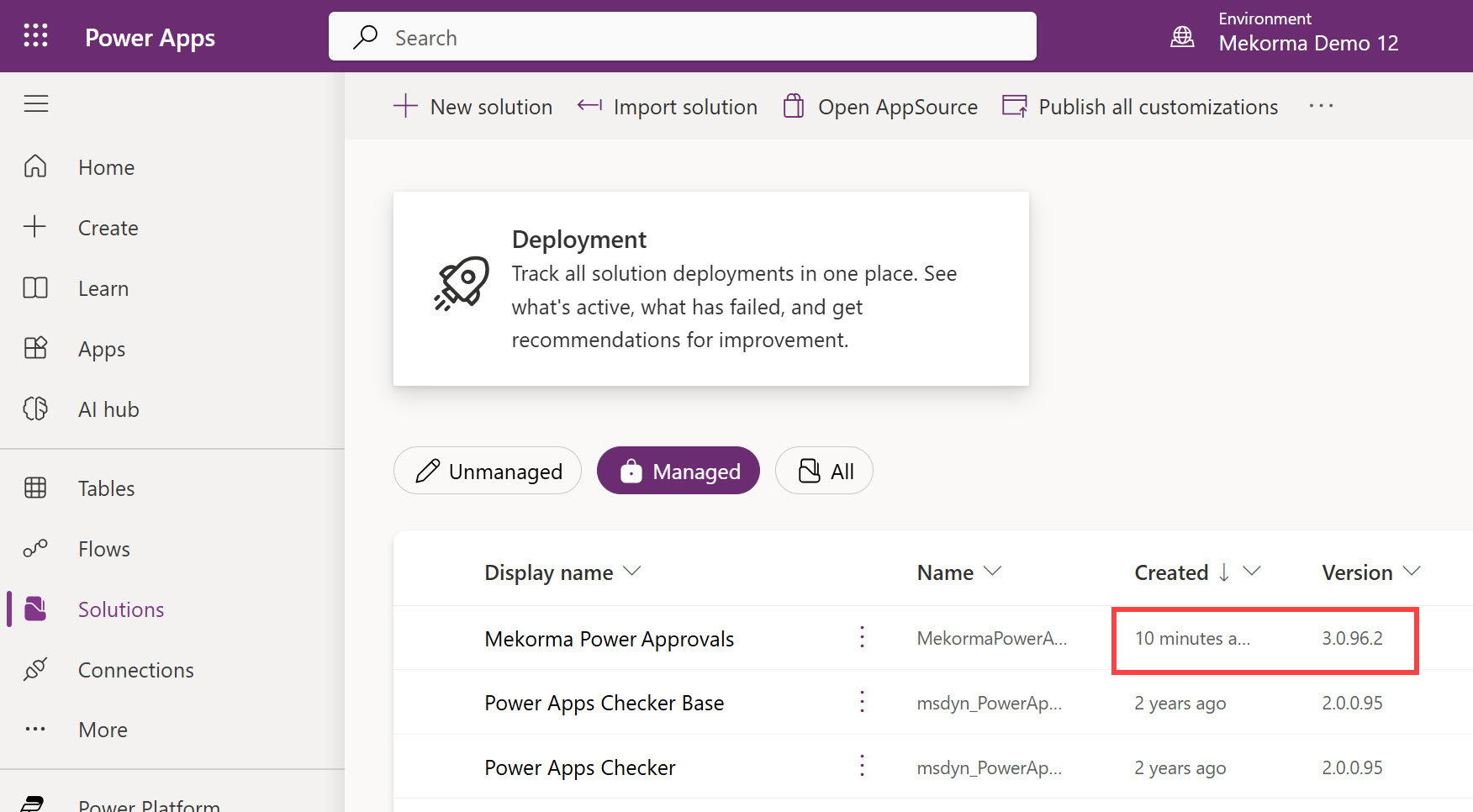
At this point, Power Approvals has been upgraded; however, you need to confirm that the Flow is still running.
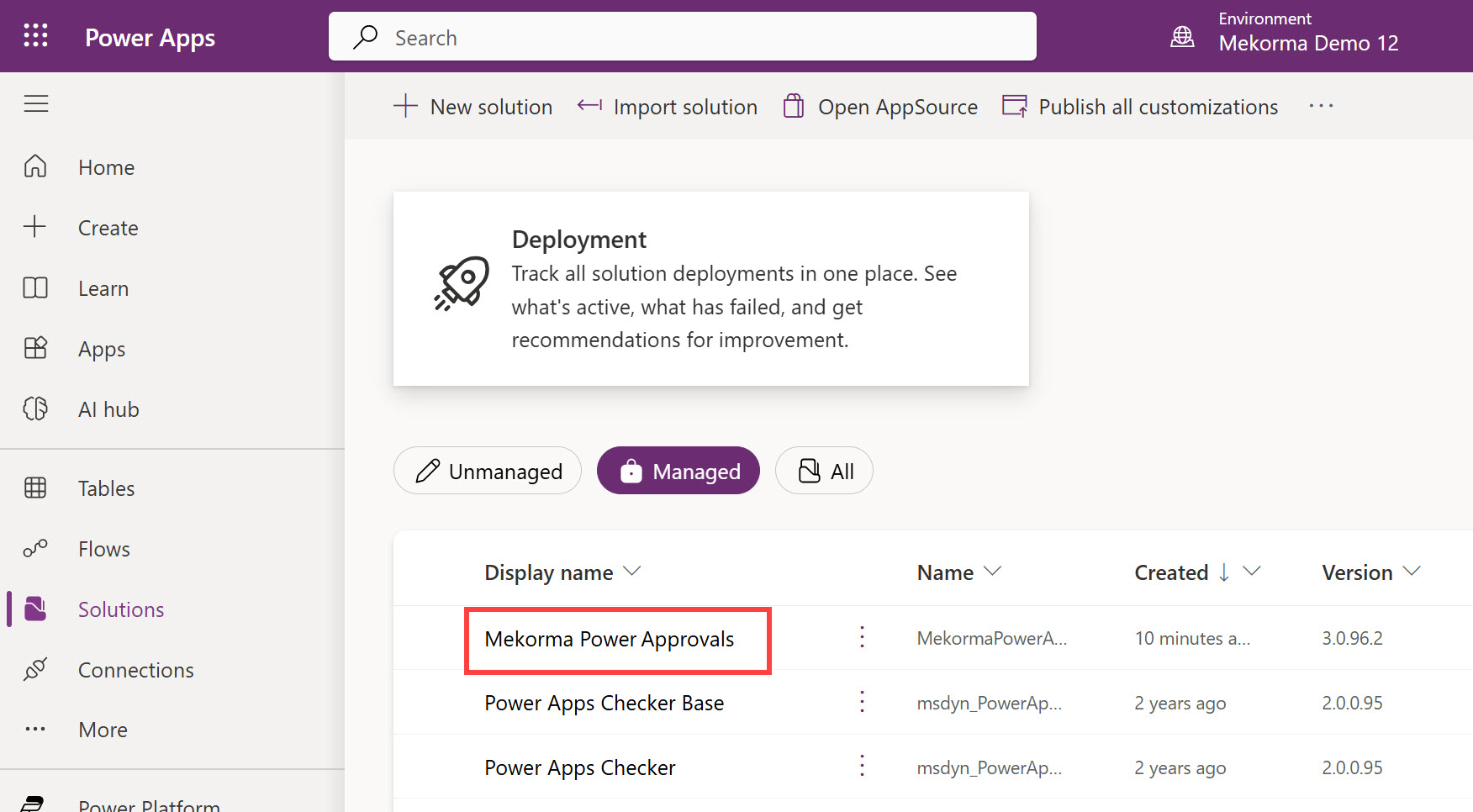
- Click the Display Name for the solution.
![]()
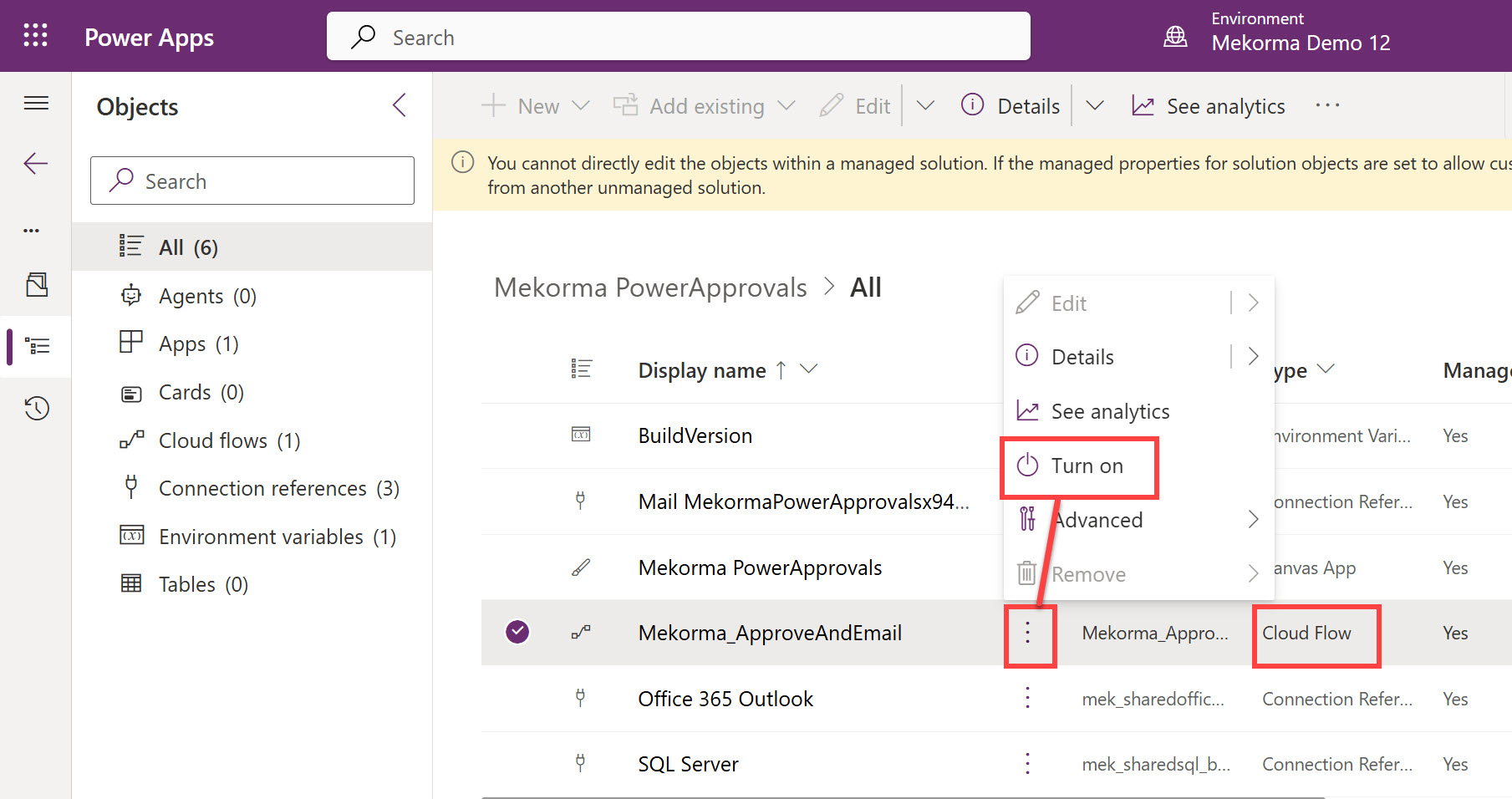
- Locate the Cloud Flow and click the ellipsis (…). If the Flow is off, select Turn On. Wait a few seconds for it to finish. If the flow is already on, there is nothing to do.
![]()
- If you upgraded Power Approvals from an unmanaged solution, you also need to Grant Access to the Batch Approvers.
Mekorma Power Approvals is now ready to be used.
Last modified:
July 21, 2025