


Adding a second image to a check report
Logos are helpful to for identifying checks and adding a personal touch. The Mekorma Super Check features one built-in check image. Mekorma Payment Hub offers the ability to add a second image to your checks, which requires adding a new field in Microsoft Report Builder.
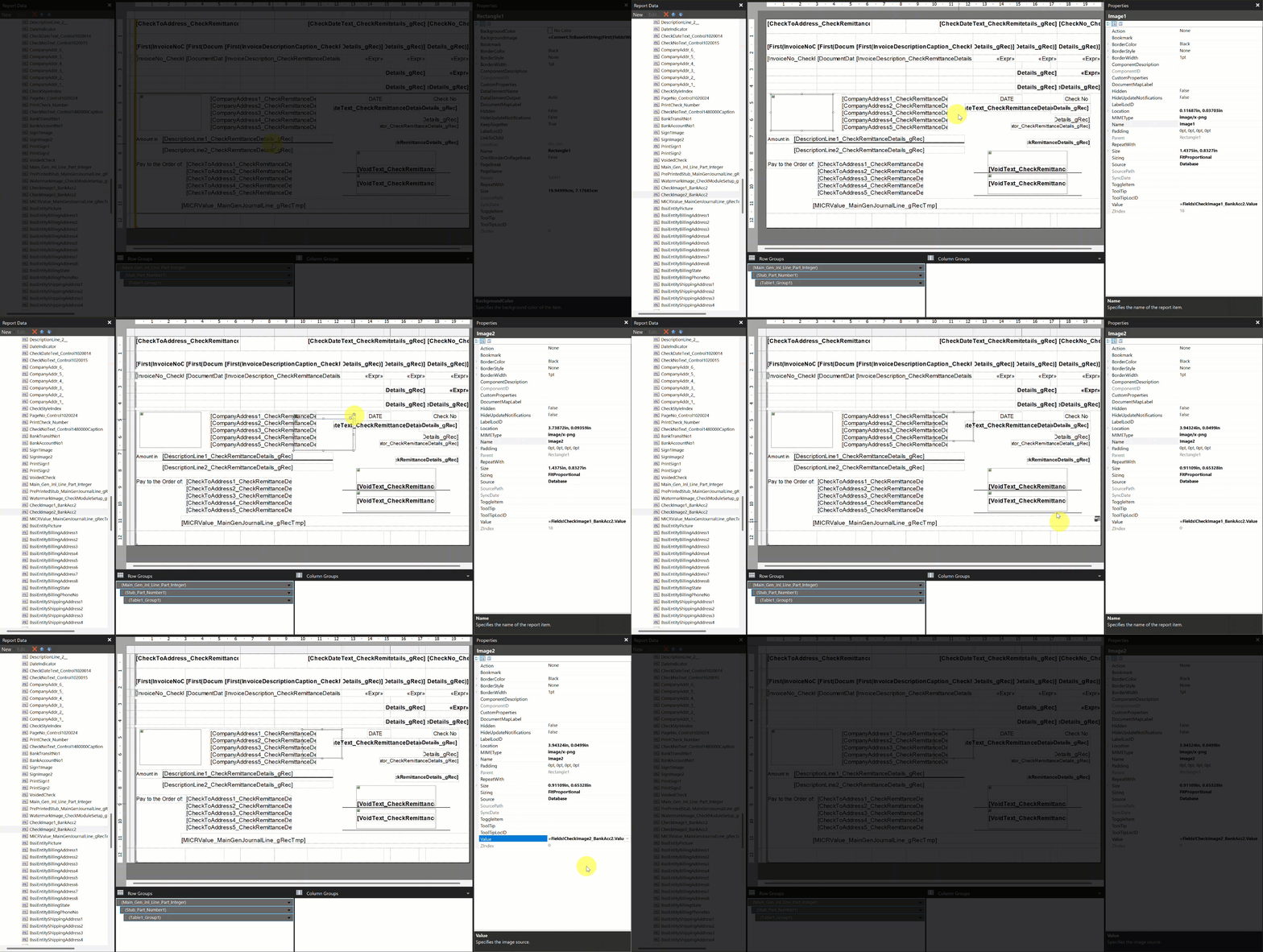
- Open the check report in Microsoft Report Builder.
- Select the existing Image field in the top-left of the report.
- Copy and paste the field.
- Move the new image field to the desired location and resize as necessary.
- To ensure the image doesn’t cover existing fields, right-click the image field > Layout > Send to Back.
- Open Properties (Main menu bar > View > Properties).
- Change the Value field to: =Fields!CheckImage2_BankAcc2.Value
- Save the report and upload it back to Business Central as a custom layout.
- Test your changes before implementing the new check to production.
Removing an image from a check report
Mekorma checks are formatted with the space for a logo, but some users may prefer a simpler check design without logos or extra images. To remove an image field:
- Open the check report in Microsoft Report Builder.
- Select the Image field in the top-left of the report.
- Press delete (or right-click > Delete).
- Optional: Adjust the address fields to align with the left edge of the check.
- Save the report and upload it back to Business Central.
- Test your changes before implementing the new check to production.
Last modified:
November 13, 2025
Need more help with this?
We value your input. Let us know which features you want to see in our products.