


To post a batch with Action Board:
- Go to Action Board.
- Select Post Batches from the Action menu.
- In the Marked column, select which batch(es) you want to post. The status must be Ready for them to post. If you need to review the payments to make adjustments so the status updates to Ready, see the steps at the bottom of this topic.

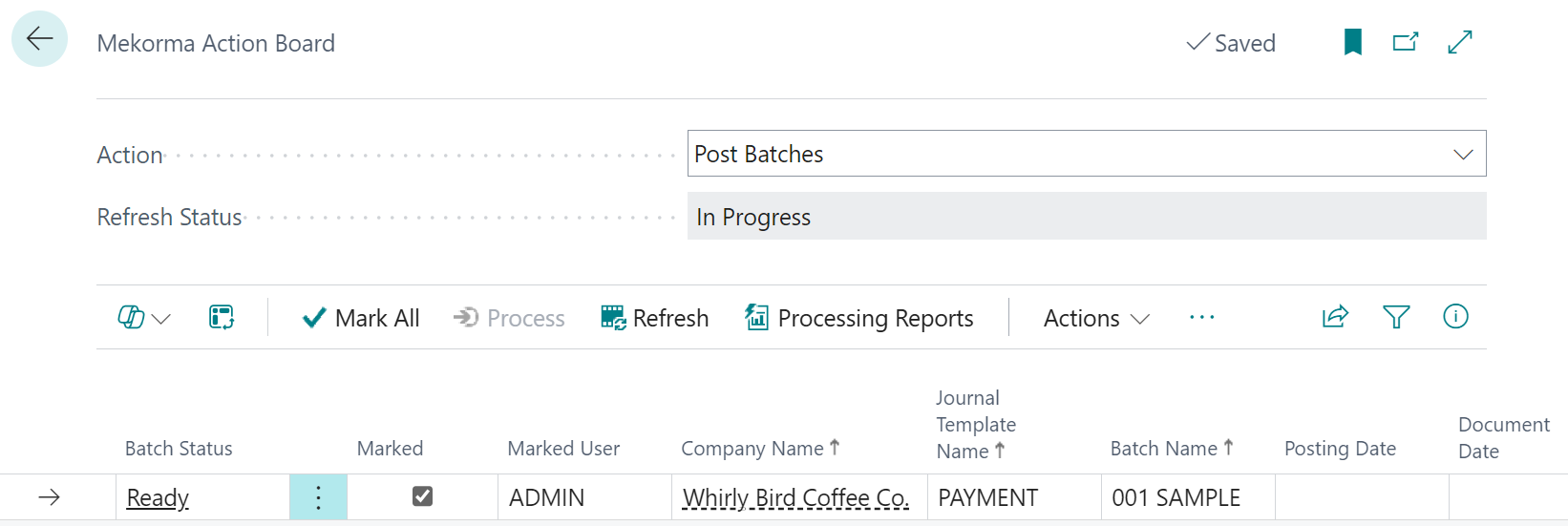
- Click Process. The status column will update accordingly.
- To review the details of your batch, go to Job Queue Log Entries.
- Repeat these steps to post more batches.
Review Action Board processing
To review information related to posting batches, click the info icon to open the Action Board Journal Check.
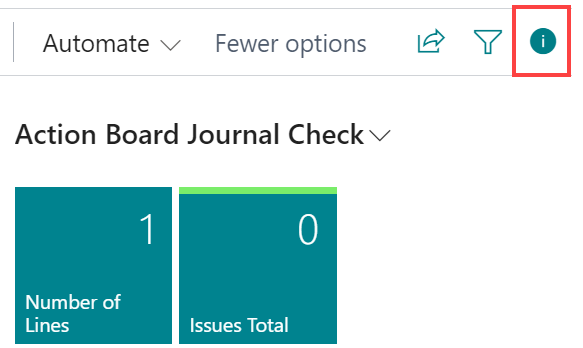
- Review any issues by clicking Issues Total. A list page opens indicating any errors or validation issues with the respective batch.
- To view the batch details, click Number of Lines. This opens the Payment Journal in a new browser tab, with the batch pre-populated. The tab will be logged into the company where the batch exists.
- Make any corrections or complete any processes to the batch as is required to allow the batch to process.
Last modified:
May 27, 2026
Need more help with this?
We value your input. Let us know which features you want to see in our products.