


Here are the step-by-step instructions, as recommended by Mekorma, to provide the digital signatures you want to print on your checks:
- Print out our Template for Gathering Signatures.
- Ask each check signer to reproduce their signature within a rectangle.
- Scan each signed sheet of paper onto a computer.
- Open the signatures one at a time in Microsoft Paint.
- Click the Selection drop-down and choose Rectangle.
![]()
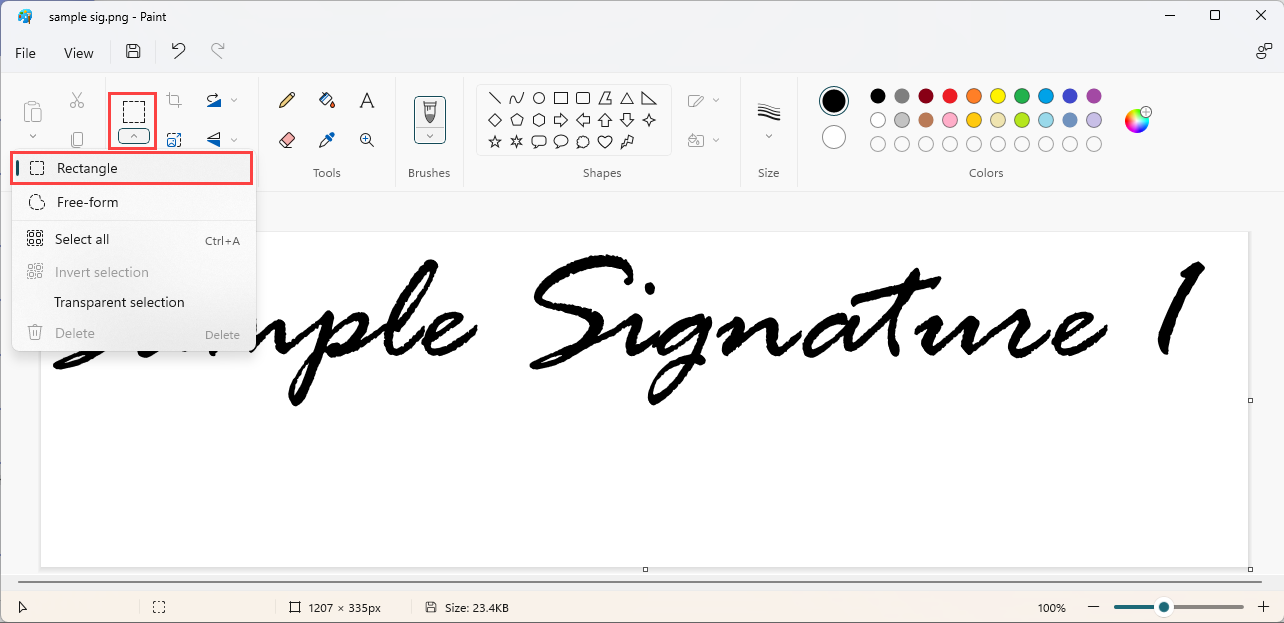
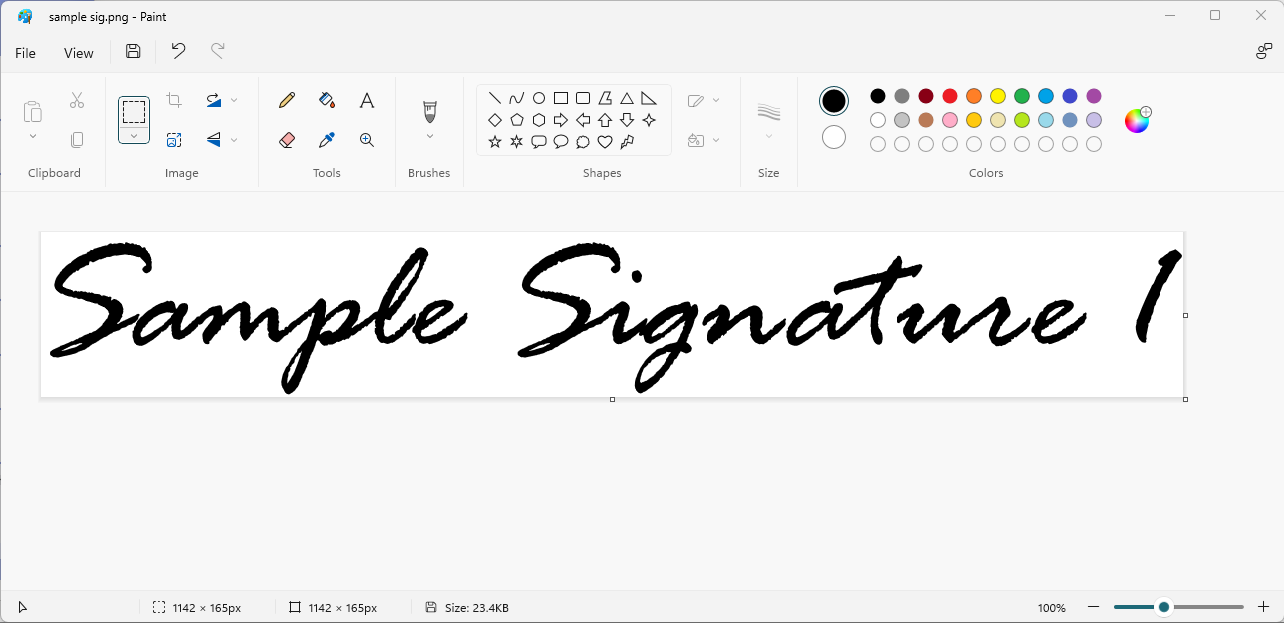
- Draw the selection box around the signature as closely as possible and then click Crop. The cropped signature should look similar to the example below:
![]()
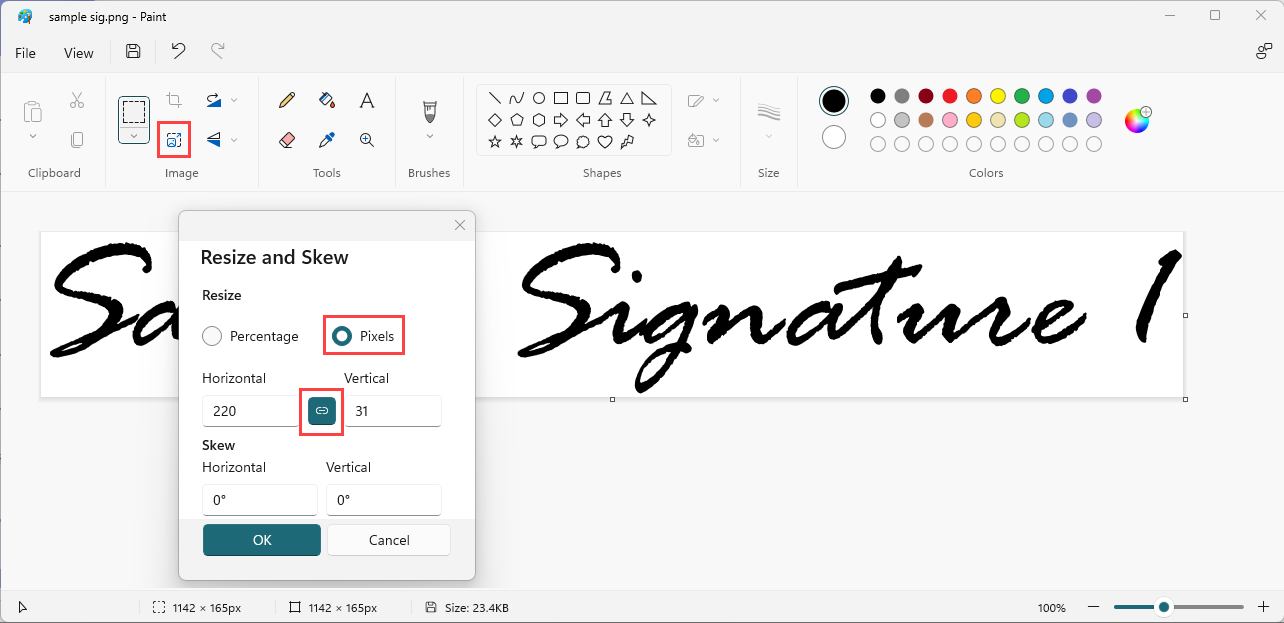
- Open the Resize and Skew window. Under Resize, select Pixels. Be sure that Maintain aspect ratio is selected. Adjust either the horizontal or vertical dimensions to approximately 220 × 50 pixels.
![]()
- Save your signature as a JPEG (jpg) or 16 Color Bitmap (bmp) file. These file formats produce the best results for check printing.
- Repeat these steps for each signature, and store them in a location accessible to an administrator for use in Business Central.
Last modified:
June 10, 2026
Need more help with this?
We value your input. Let us know which features you want to see in our products.