


If you need to update a Mekorma app in Business Central from your currently installed version to the latest available version, follow the steps on this page. Apps are updated in Business Central from the Admin Center.
- In Business Central, go to Settings > Admin Center.

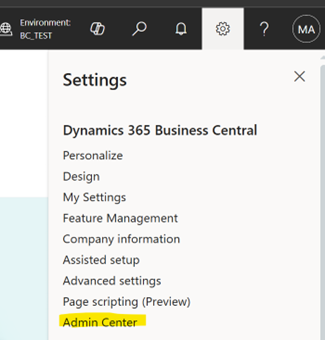
- Click on the environment that you need to update the apps for.
- Click Apps in the header menu.
- Find the app to update. Review the installed version against the latest available version. The Available Update Action column tells you if an update is available.
- Clicking Install Update opens a window asking if you would like to schedule a time to update the app. Select the checkbox to schedule a time, otherwise you can ignore the check box and click yes to continue.
- Your update is now scheduled and the status reflects that.
- To begin the update, click Refresh in the top menu. In the Available Update Action column you will see that the app is now updating.
- After refreshing the window once more, the Available Update Action shows that the app is now up-to-date.
Last modified:
May 13, 2026
Need more help with this?
We value your input. Let us know which features you want to see in our products.