


Building payment batches begins with your Build IDs and Process Templates. Once your Process Template has been created, you can build batches through Action Board.
- Go to Action Board.
- Select Build Payment Batches from the Action menu.
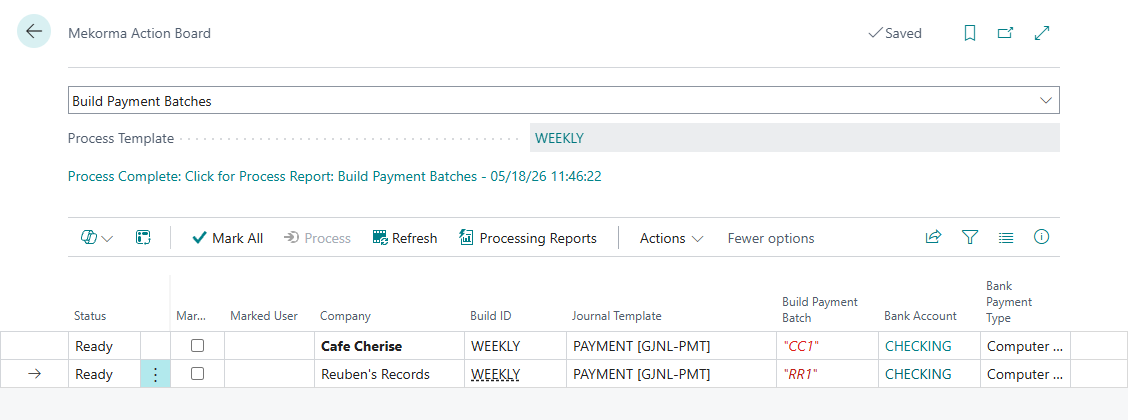
- Select the Process Template. The payment lines populate based on the criteria from the selected process template. Should you need to change the process template, click the template name to open the selection window.
- Select the batches you want to process in the Marked column.
- Click Process to build the payment batches.
- After the batches have been built, the process report becomes available from the Status menu. The process report shows the detail for each batch, including companies, transactions, balances, and timestamps. If there are any issues with building the batch, the status will change to Errors exist. Open the FactBox and review the issues under Action Board Line Check and resolve them before rebuilding the batch in Action Board.
- When the status is Ready, you can move to the next step of Action Board processing.
Last modified:
May 18, 2026
Need more help with this?
We value your input. Let us know which features you want to see in our products.