


A Process Template lets you specify the payment batches you want to build by combining your previously created Build IDs to define how payments should be created. Since Action Board works with Multi-Entity Management (MEM) by Binary Stream®, you can build Process Templates and include specific entity information as well.
Action Board works only with payments that use a balance account type of Bank Account.
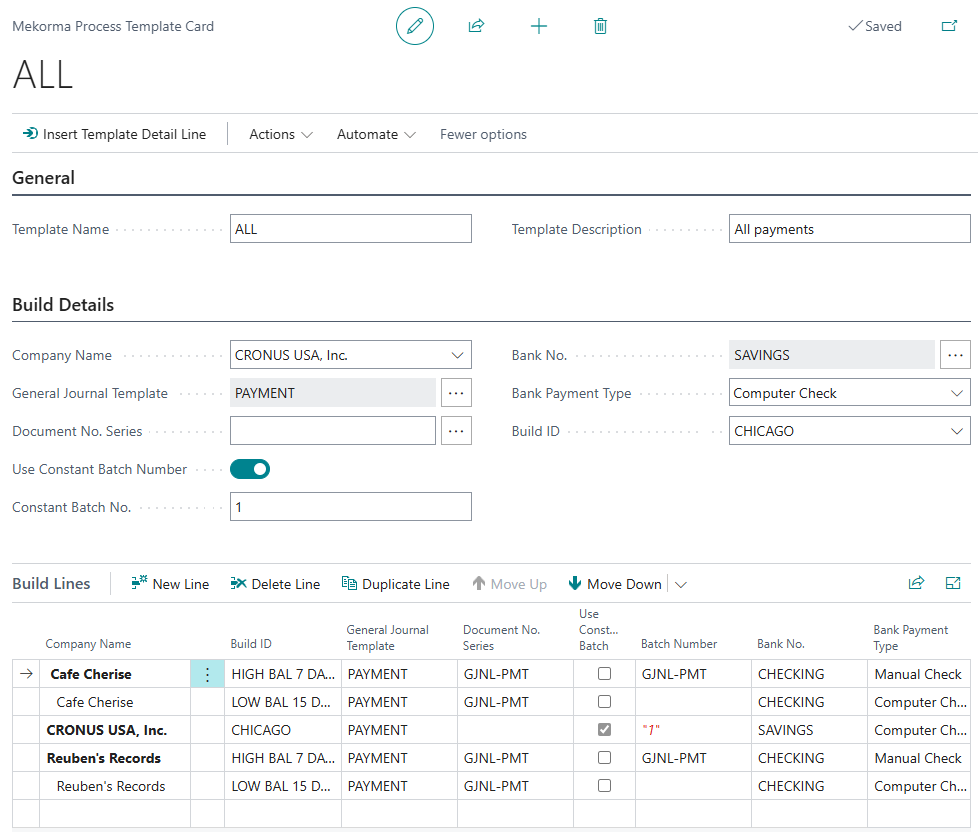
When creating a Process Template, select a company, define payment criteria, and choose which Build ID to include. The lookups in the build details are not universal—they are based on the selected company.
To create a Process Template:
- Go to Mekorma Process Templates.
- Click New.
- Enter the template name and description.
- You can add build details in two ways:
- Use the Build Details section and select Insert Template Detail Line
- Add and edit lines directly in the Build Lines section
- Select a company, then complete the build detail fields.
- Select Company Name before entering other fields.
- For remote payments, use a Remote Payment Services-enabled General Journal Template and Bank No., and set Bank Payment Type to Manual Check.
- For EFT payments, set Bank Payment Type to Electronic Check.
- When MEM is enabled, Company Code is visible and defaults to the one assigned to that account.
- Repeat these steps until you have all the necessary criteria for the Process Template.

Maintain a Process Template
Once you have added all your criteria, you can edit the Process Template if necessary:
- Use the move up and move down buttons to reorder your template. For multiple lines from the same company, lines are built in the batch in the order they appear.
- Edit lines directly in the Build Lines section by clicking in any field.
- Use Duplicate Line to copy an existing line and update only the fields that change.
For example, if you submit remote payments, list those lines first so they are sent to the remote payment provider first. This way, if any payments fail, they will be captured in a subsequent batch if there’s overlap in template criteria.
Note: When MEM is enabled, users can see all the entities in a template, even those they don’t have access to. Entities users don’t have access to are highlighted in red italicized font. Users are unable to build batches for entities they don’t have access to, and can delete them from the process template.
Build details field descriptions
Expand the menu below for a more thorough description of each build detail field.
- View field descriptions
-
Company Name: The company you are setting the build details for. This must be chosen before you can set any of the following parameters.
General Journal Template: The payment template you want to use. If building a remote payment line, you must use a remote payment template (e.g., RPS).
Document No. Series: The number series used to assign document numbers during processing. When used, this overrides the Number Series defined in the selected General Journal Template.
Use Constant Batch Number: A checkbox that switches between using a constant batch number for each payment journal entry or using the selected Payment Journal Batch Number for incremental batch numbering.
Payment Journal Batch Number / Constant Batch Number: The batch number used when processing payments. If Use Constant Batch Number is enabled, this becomes a free-text field (10-character limit) labeled Constant Batch No. If disabled, the field is Payment Journal Batch Number and defaults to GJNL-PMT (you can change it to any batch numbering series).
Bank No.: The specific bank account to use. If building a remote payment line, you must use a Remote Payment Services-enabled bank account.
Company Code: The company code for a MEM entity. This field is visible only when MEM is enabled. When a bank account is selected, the Company Code defaults to the one assigned to that account (this can be overridden). When you click the selection button for the Company Code field, only bank accounts assigned to that code will appear.
Bank Payment Type: The type of payment to use. If building a remote payment line, you must select Manual Check.
Build ID: The specific build ID you want associated with this template.
Need more help with this?
We value your input. Let us know which features you want to see in our products.