


Remote Payment Services allows you to connect an unlimited number of bank accounts for payment processing. Bank accounts must first have a contract with the outsource provider—contact Mekorma Support for help with the initial Remote Payment Services set up.
For those that use multiple buyers with Multi-Entity Management (MEM) and process payments with Priority, you can map multiple buyers to one vendor profile in the Priority portal. Our Implementation team will help you get this set up during your product implementation.
To set up a bank account for remote payments:
- Go to Bank Accounts.
- Select the bank account to process remote payments from.
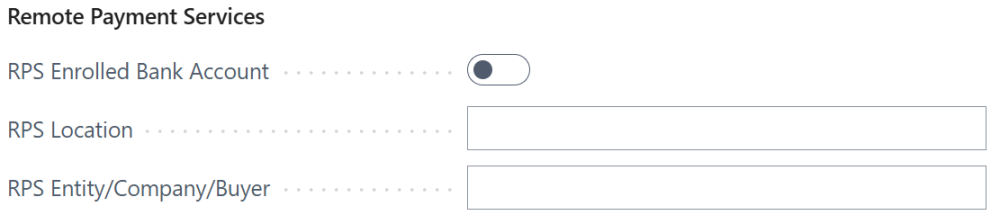
- In the bank account card, go to Mekorma Settings > Remote Payment Services. The following configurations are available for remote payments:
- RPS Enrolled Bank Account: Toggle to enroll/unenroll a bank account in remote payments. Repeat this for each bank account you want to enroll.
- RPS Location: Populates based on the terms established with your organization and your outsource provider. Also used for mapping the bank account to the unique bank account ID from Priority.
- RPS Entity/Company/Buyer: Map a specific Business Central entity, company, or buyer to its portal counterpart during remote payment submission. For Priority, the ID entered in Business Central is case sensitive and must match the buyer’s BID in the Priority portal.
Need more help with this?
We value your input. Let us know which features you want to see in our products.