


Mekorma’s Super Check report is designed to print the check at the bottom, with up to 30 invoice lines above. The report is divided into 8 regions, controlled by row expressions in Microsoft Report Builder.
If you want the check to print at the top of the report with the invoice lines below, you need to edit the expressions of the row properties in Microsoft Report Builder:
- Open the check report in Microsoft Report Builder.
- Click in the report so the grey margin shows. Notice that there are 8 rows in the margin—each represents a region of the report. You will use these margins to make your edits to each region.

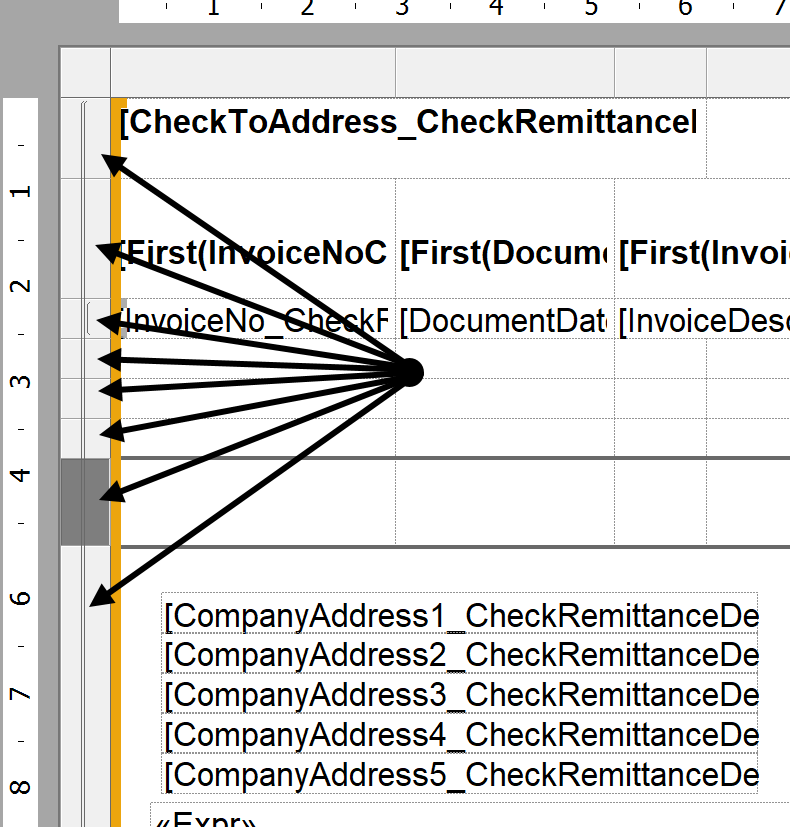
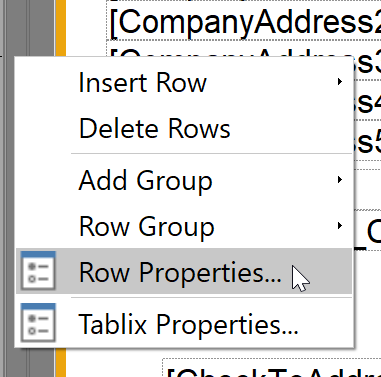
- Let’s start with moving the actual check to the top. In the bottom region of the report, right-click to the left of the yellow border and select Row Properties.

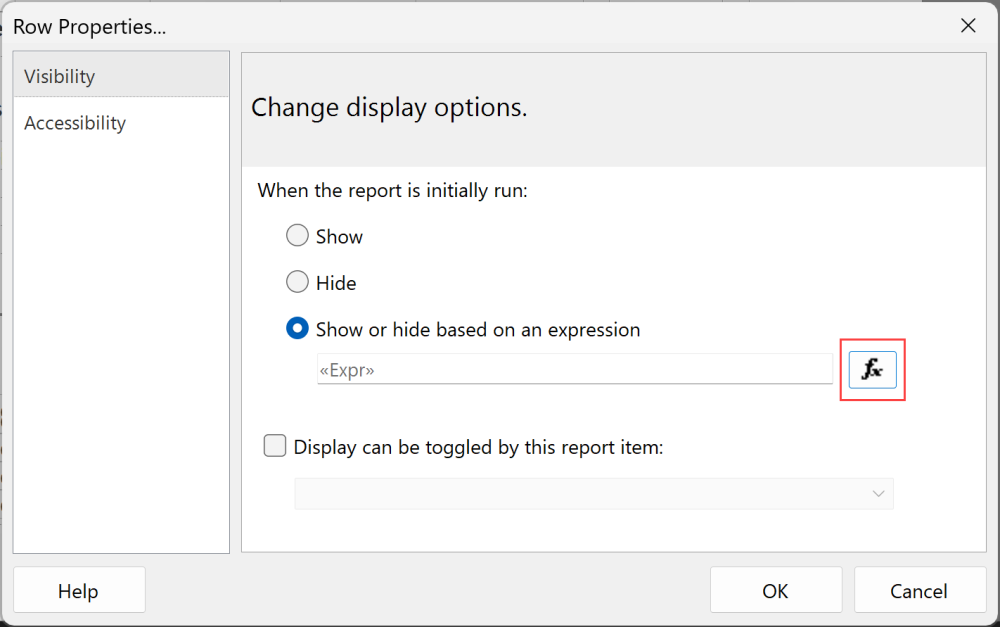
- On the Visibility tab, click the expression icon (fx).

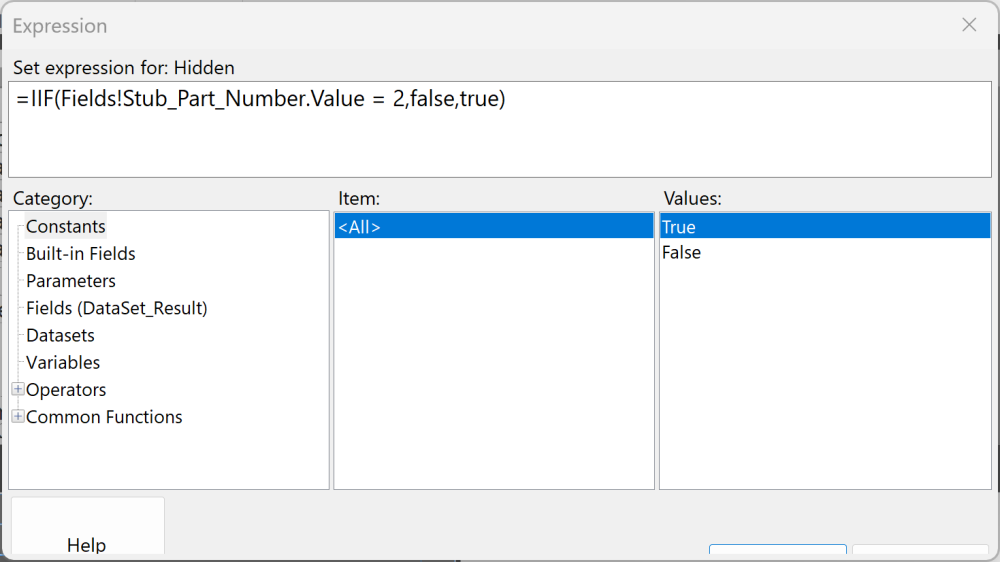
- The standard expression for the Mekorma Super Stub check region is
=IIF(Fields!Stub_Part_Number.Value = 2,false,true). Change= 2to= 1.

- Click OK to save.
- Now that the check is positioned at the top of the report, follow the same steps to move the invoice regions to the bottom of the report. In the next region, right-click to the left of the yellow border, select Row Properties, and open the expression window.
- The standard expression for the invoice regions is
=IIF(Fields!Stub_Part_Number.Value = 1,false,true). Replace= 1with= 2.
- Click OK to save.
- Repeat steps 7-10 for the remaining regions, ensuring that all expressions for these regions (the invoice information) have a value of 2 while the first region (the actual check) has a value of 1.
- Save the report and upload it back to Business Central as a custom layout. Be sure to identify this version clearly so users know the check is at the top in this layout.
- Test your changes before implementing the new layout in production.
Last modified:
November 13, 2025
Need more help with this?
We value your input. Let us know which features you want to see in our products.