


After installing all required Mekorma apps, complete registration to activate your subscription or start your 30-day free trial. Our 30-day free trial is for use in a production environment; sandbox environments have unlimited access to the full suite of features (except Vendor Validation, which is only available for purchase).
To register
- Click Click here to Register in the Business Central menu.

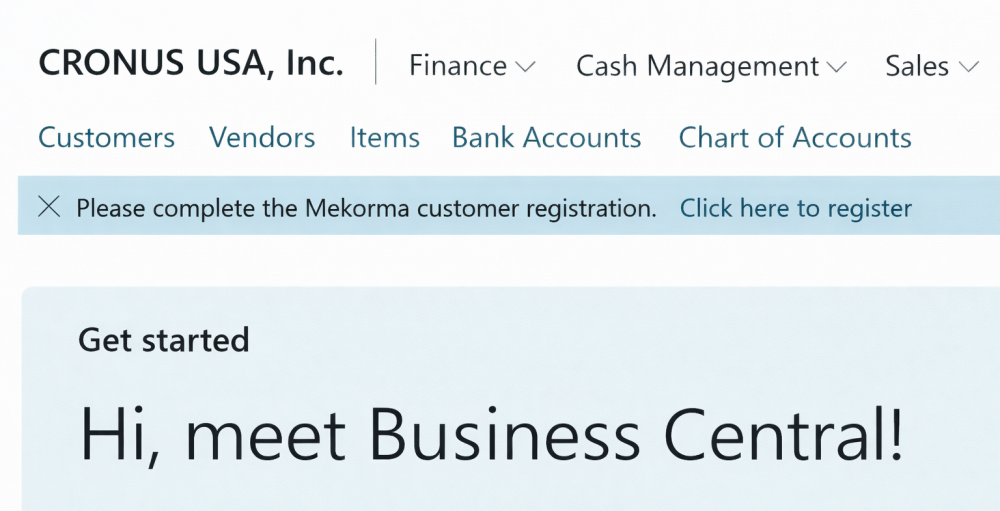
- On the Mekorma Customer Registration page, enter your company information:
- Customer (company) name
- Street address
- City
- State
- Zip code
- Country
- Phone number
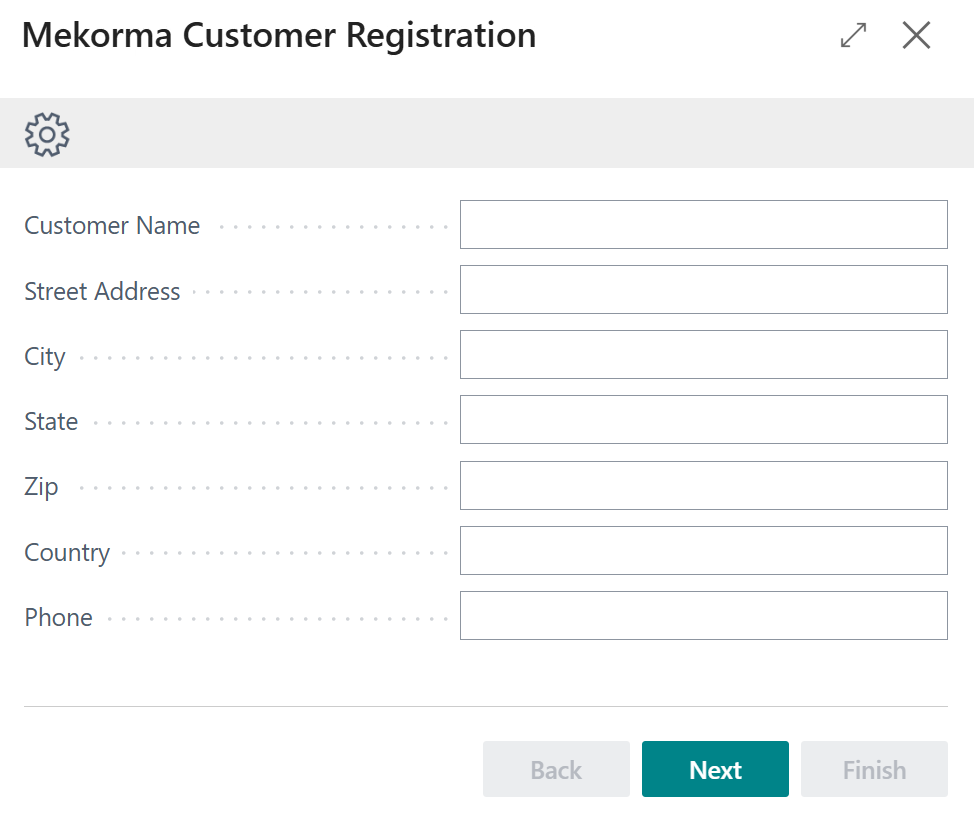
- Click Next.
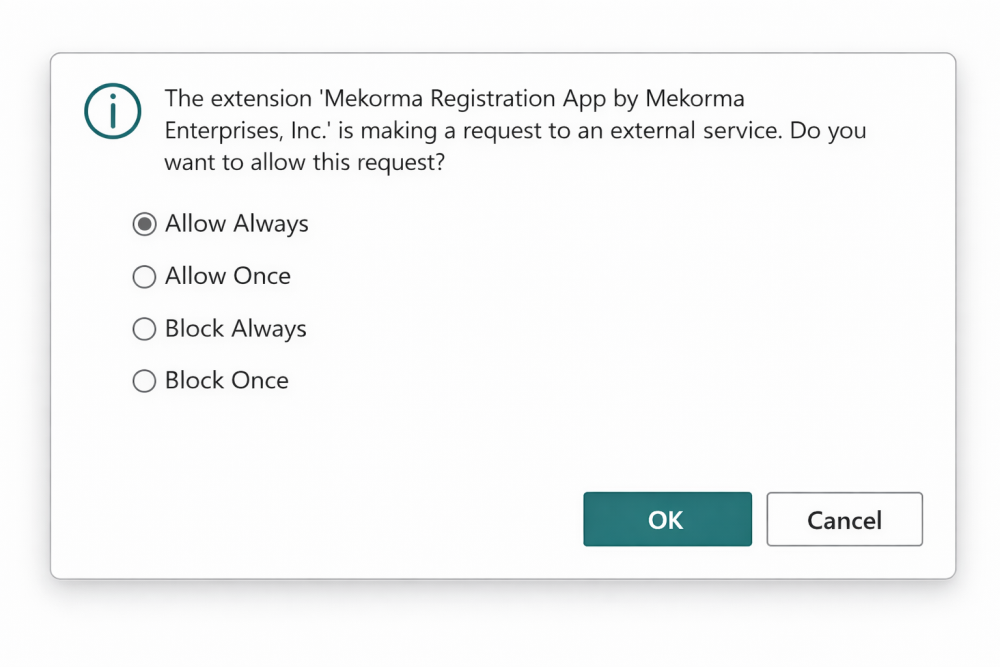
- Connect your system with Mekorma’s registration service. Choose Allow Always then click OK.
Blocking this connection prevents successful registration.
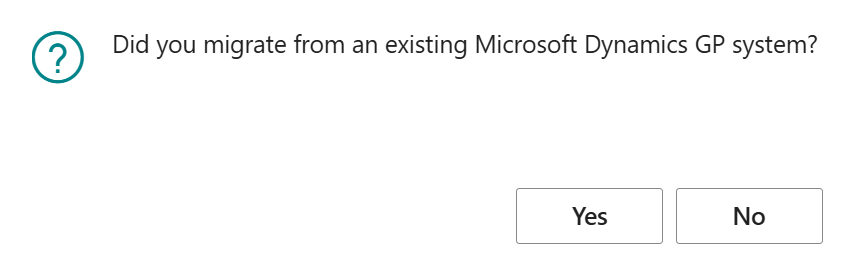
- You will be prompted if you have migrated from Microsoft Dynamics GP.
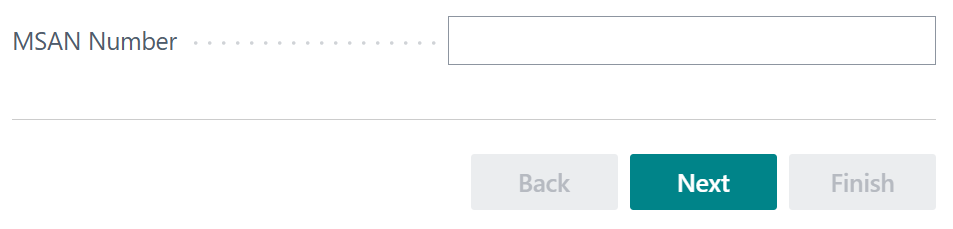
- Click Yes to enter your Microsoft Account Number (MSAN). This links your Mekorma products to your existing Mekorma account, however it is not required.
- If you do not have your MSAN, continue with registration.

If you need assistance confirming your MSAN, contact Mekorma Sales.
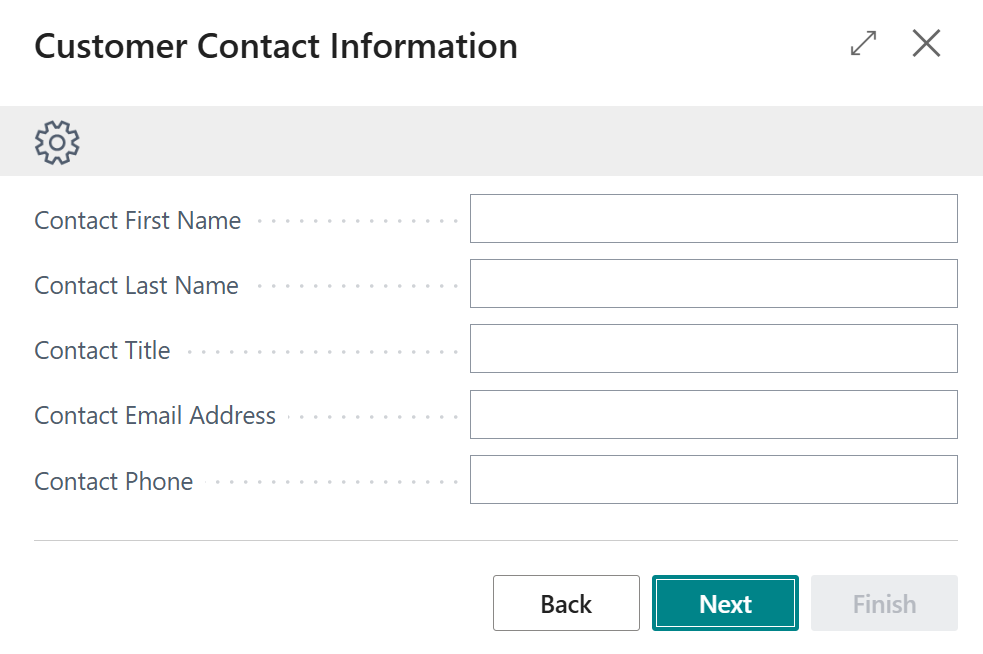
- Enter the contact information of the person associated with the company:
- First name
- Last name
- Title
- Email address
- Phone number

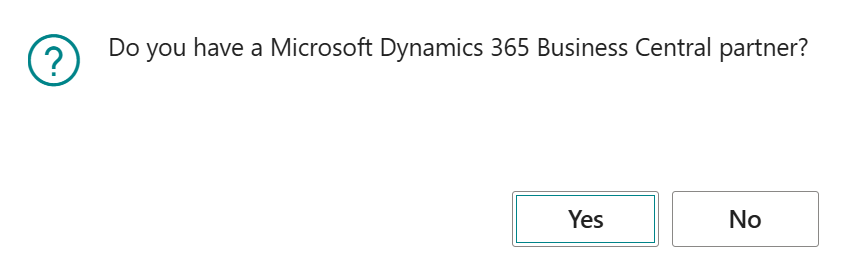
- If working with a Microsoft Partner, click Yes.

- Enter the partner’s information when prompted. If you are the partner completing registration, enter your information.
This allows our Sales and Support team to assist appropriately.
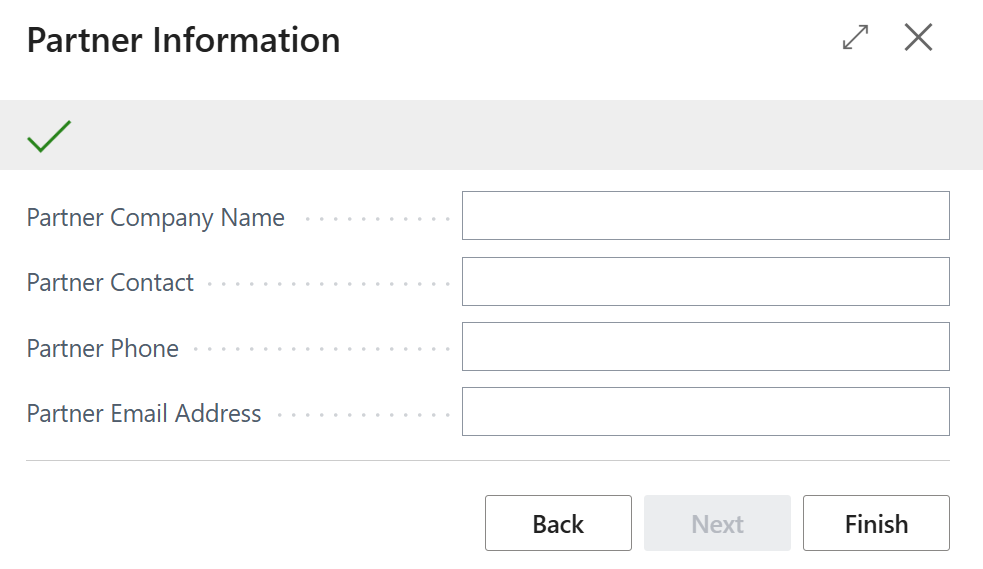
- Click Finish to submit your registration.
Review registration status
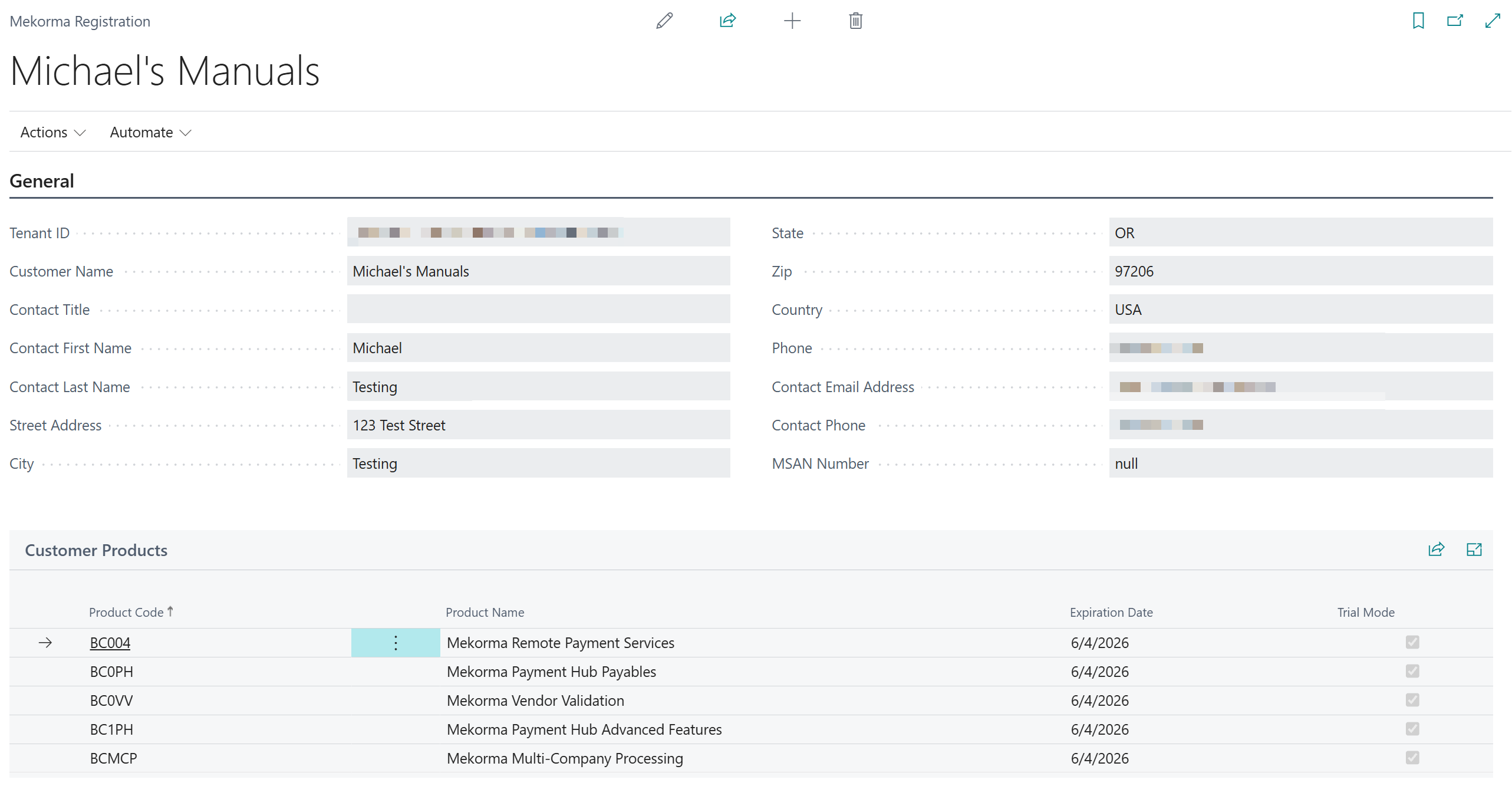
To view your registration information and product status at any time:
- Click the Tell Me button.
- Search for Mekorma Registration.
- Open Mekorma Registration.

Need more help with this?
We value your input. Let us know which features you want to see in our products.