


By default, Business Central check stubs display the invoice or transaction information as a single line. Mekorma gives you the option to show purchase invoice lines on the stub instead. This can be useful, for example, for an event planner who wants to provide clients with a detailed breakdown of items included in a payment.
- Open your bank account card and go to Mekorma Settings.
- Toggle Enable Itemized Stub.
Behavior and rules
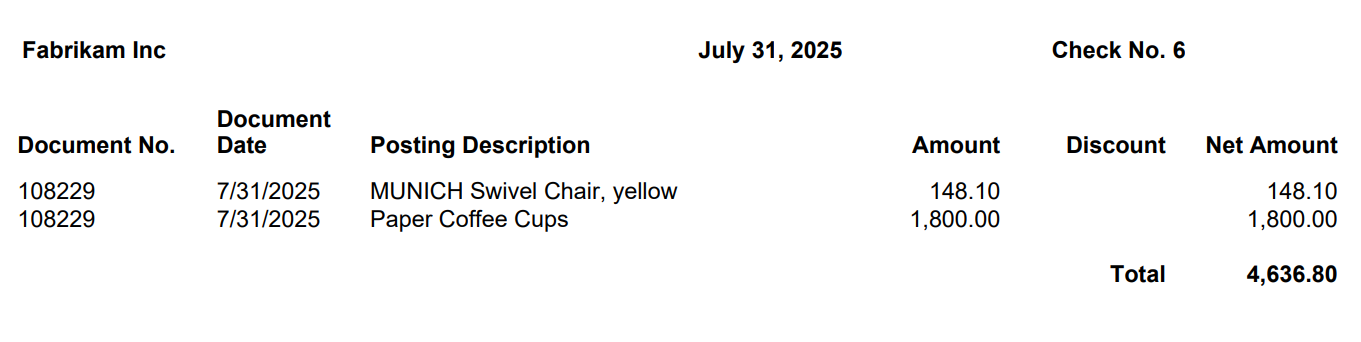
- Check stubs follow the existing check stub rules. For example, if your remittance is set to overflow and your stub size is limited to 10 lines, a 12 line purchase invoice will print 10 purchase lines on the stub and the remaining 2 on the overflow. The example below details this further.
- If no purchase invoice is found, the stub will display in the standard Business Central format.
Example
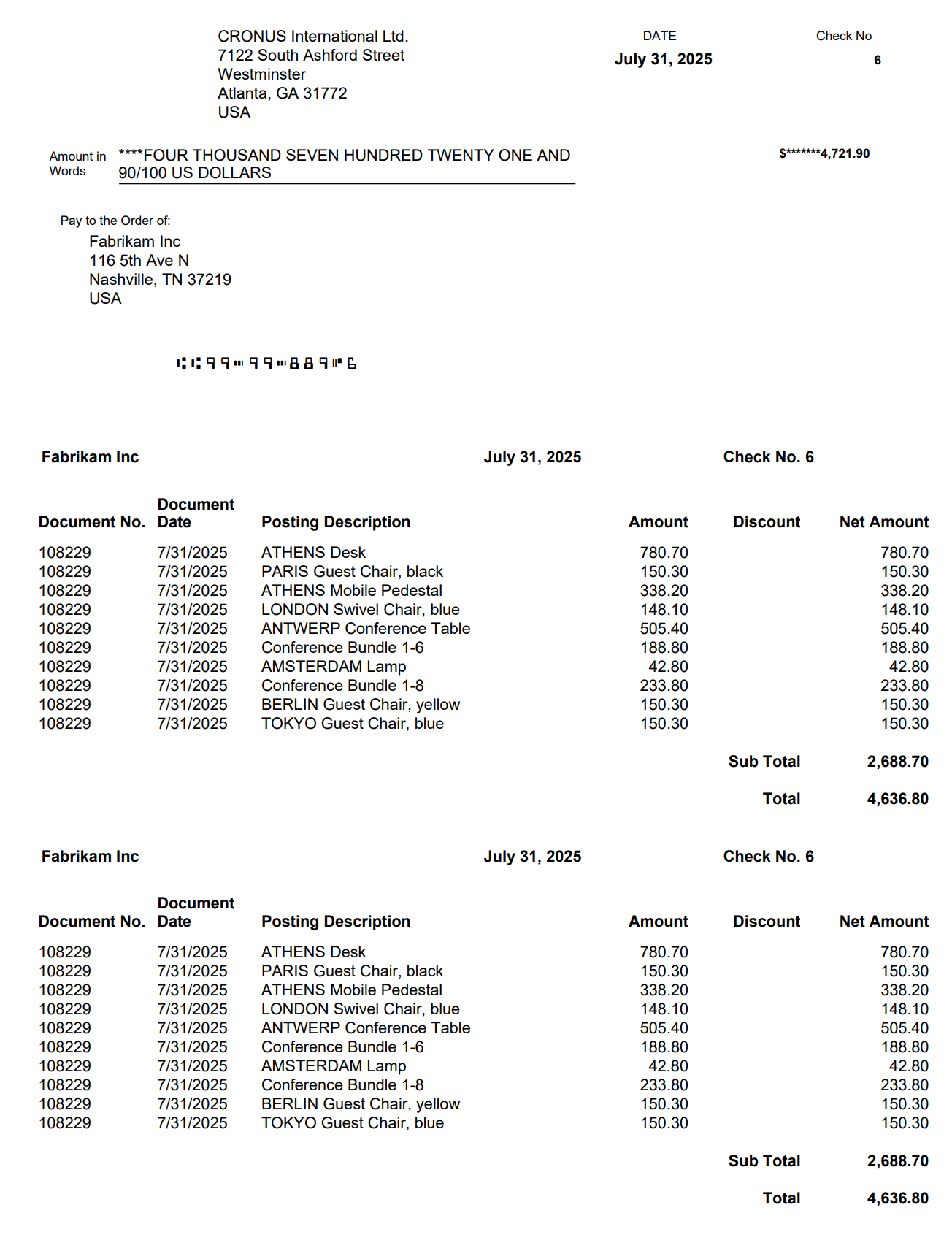
The example here follows the scenario described earlier. When you itemize your stub lines, your check stubs and remittances will look like this:
Check stub showing 10 itemized lines:
Remittance report showing 2 overflow itemized lines:
Last modified:
April 28, 2026
Need more help with this?
We value your input. Let us know which features you want to see in our products.