


Use Remote Payment Services to submit payment batches to your remote payment provider directly from Business Central. After you build the batch, review any validation issues, preview the posting, and submit the batch for processing.
Submit remote payments
Build remote payment batches the same way you build standard payment batches. Once the batch is ready, follow the steps below to submit it through Remote Payment Services.
- Go to Payment Journals and select a remote payment-enabled template from the General Journal Template List. A new Remote Payment Services batch is created and ready to build.

Note: If you need to create a non-Remote Payment Services payment, open a new payment journal with a template not designated for remote payments.
- Build the payment batch.
- Review any validation issues shown in the FactBox pane and correct them before continuing. For more information, see the section on understanding payment validation errors.
- Click Home > Preview Posting. This is required to submit a remote payment. Each time a payment is modified, you must preview the post again.
- Submit the payment (Actions > Mekorma > RPS > Submit to RPS). If validation issues exist, review the errors in the FactBox pane, correct them, and try again.
- You will be prompted that the submission was successful. If the status is something other than Processed or Processing, refer to Handling Errors with Mekorma Remote Payment Services.
- Your remote payment provider will process the payment batch. There is a time delay for processing, which can take a couple minutes. To check for an update to the batch status, refresh the page.
- Once the status has updated to Processed, you can post the batch.
Note: If you deleted any payment lines from the batch, you may need to renumber your payment/check numbers at your next payment. Learn about renumbering and how to use it in your workflow.
Understand Remote Payment Services batches
Remote Payment Services batches are built the same way as standard payment batches. However, there are a few key differences:
- Batch Name: Automatically created according to your batch numbering configuration.
- RPS Status:
- Created: Batch created and awaiting processing/submission.
- Processing: Submitted to Remote Payment Services but awaiting a response.
- Processed: Successfully submitted to and processed by the remote payment provider. You can now post the payment batch in Business Central.
- RPS Status Description: The current status of the payment batch. It provides more information when a Remote Payment Services submission failure occurs.
Understand payment validation errors
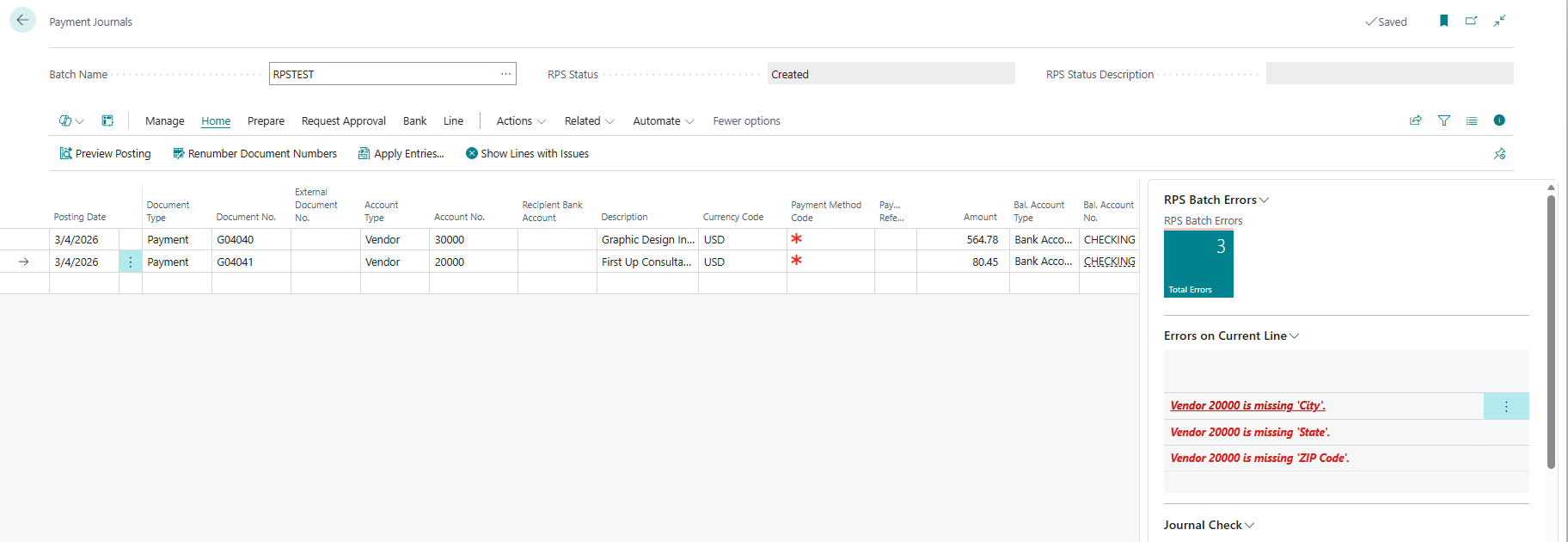
As you build a remote payment batch, the Payment Journal automatically checks for missing or invalid payment information before submission. Validation issues appear in the FactBox pane, update automatically as you add or modify payment lines, and disappear as you correct them.
The FactBox pane includes the following sections:
- RPS Batch Errors displays the total number of validation issues in the batch.
- Errors on Current Line displays validation issues for the currently selected payment line.
In the example above, the batch contains 3 validation errors. The Errors on Current Line section shows that document no. G0401 is missing vendor address information. Update the vendor information to resolve the errors before submitting the batch.
You cannot submit a payment batch to your remote payment provider until all validation issues are resolved.
Additional resources
Processing Remote Payment Batches with Action Board – Learn how to submit remote payments using Action Board instead of the standalone process.
Renumbering Payment Numbers – Understand renumber payment/check numbers in your workflow.
Remote Payment Services Assessment and Onboarding Guide – Review the full guide for preparing, setting up, and onboarding Remote Payment Services.
Check documents and journals in while you work–Business Central | Microsoft Learn – Learn how Business Central checks documents and journals for errors in the background.
Need more help with this?
We value your input. Let us know which features you want to see in our products.