


After implementation, it is helpful to perform a bulk validation of your existing vendors. This helps reveal data or compliance issues, reducing potential problems later.
Before validating a large batch of vendor records, start with a small sample to assess processing time. During bulk validation:
- Validation connects to three different providers (TIN, OFAC, and address), so the process may take up to 3 minutes.
- Your current Business Central session is temporarily unavailable while validation runs. You can open a new browser tab to continue working in Business Central.
When vendors are not placed on hold after validation, you can:
- Validate vendors individually or in bulk.
- Review the results.
- Decide how to address validation issues before placing vendors on hold.
This option is better for customers whose vendor data is incomplete or inconsistent. If you prefer not to validate your existing vendors in bulk, enable Pay Run Validations to ensure vendors are automatically validated before new payments are issued.
Validating multiple vendor records
- Go to Mekorma Vendor Validation.
- Find vendors to validate by entering a range of Vendor IDs in the From Vendor ID and To Vendor ID fields. Enter the same vendor ID in both fields to validate just one vendor. To open the vendor card for a vendor listed in the From or To fields, click the ellipsis to the right of the selection.
- Skip any vendor that you want to exclude from the validation. Click Edit List and mark Skip.
- Click Validate. The top portion of the results displays the overall validation results for each vendor. If this is your first time running a validation, you will be prompted to allow the Mekorma Payment Hub extension to connect to an external service. Click Allow Always to enable the service without receiving future alerts.

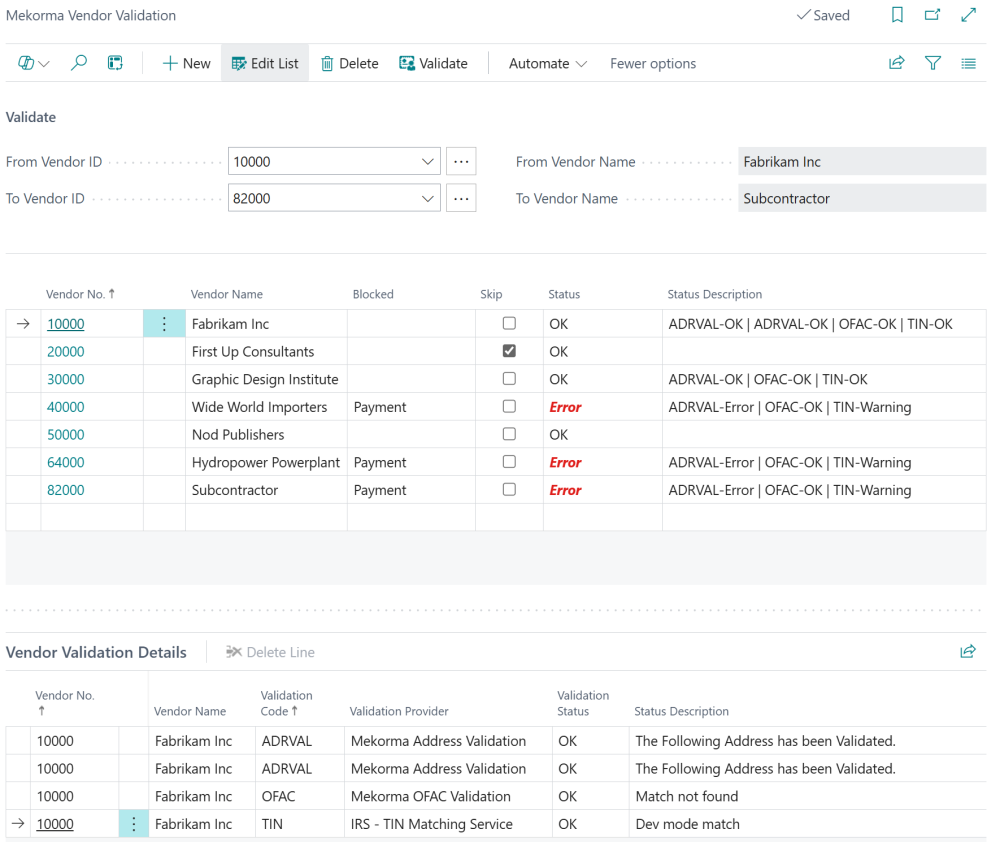
Note: Vendors either marked to be skipped or who are excluded from all validation provider options (in the vendor card) still display, but their results will be empty (see First Up Consultants and Nod Publishers).
- To see further details of the validation for a specific vendor, review Vendor Validation Details. Select a vendor from the top results and their validation results display in this area. Here you can better understand why your vendor may have failed a specific validation. For example, if they failed the TIN Match, the Status Description column explains the reason for error.
- These validation results, combined with your provider settings, determine the outcome for each vendor. If a vendor receives an error or warning, their status may change, and the Blocked field could change from blank to Payment, indicating that payments are blocked from processing. See Understand Your Validation Results for more information on the post-validation process.
- If a vendor previously had payments blocked and obtains an OK validation status, you must manually update the Blocked field in the vendor card from Payments to blank to resume processing payments.
Note: If a validation provider experiences a system issue during the process, the status will indicate System Issue. That provider’s results won’t affect the overall outcome of the validation. You can re-run the validation once the provider is available again.
Need more help with this?
We value your input. Let us know which features you want to see in our products.