


Adding bank name and branch information helps maintain consistent banking standards. If you need to add these to your checks, follow the steps below:
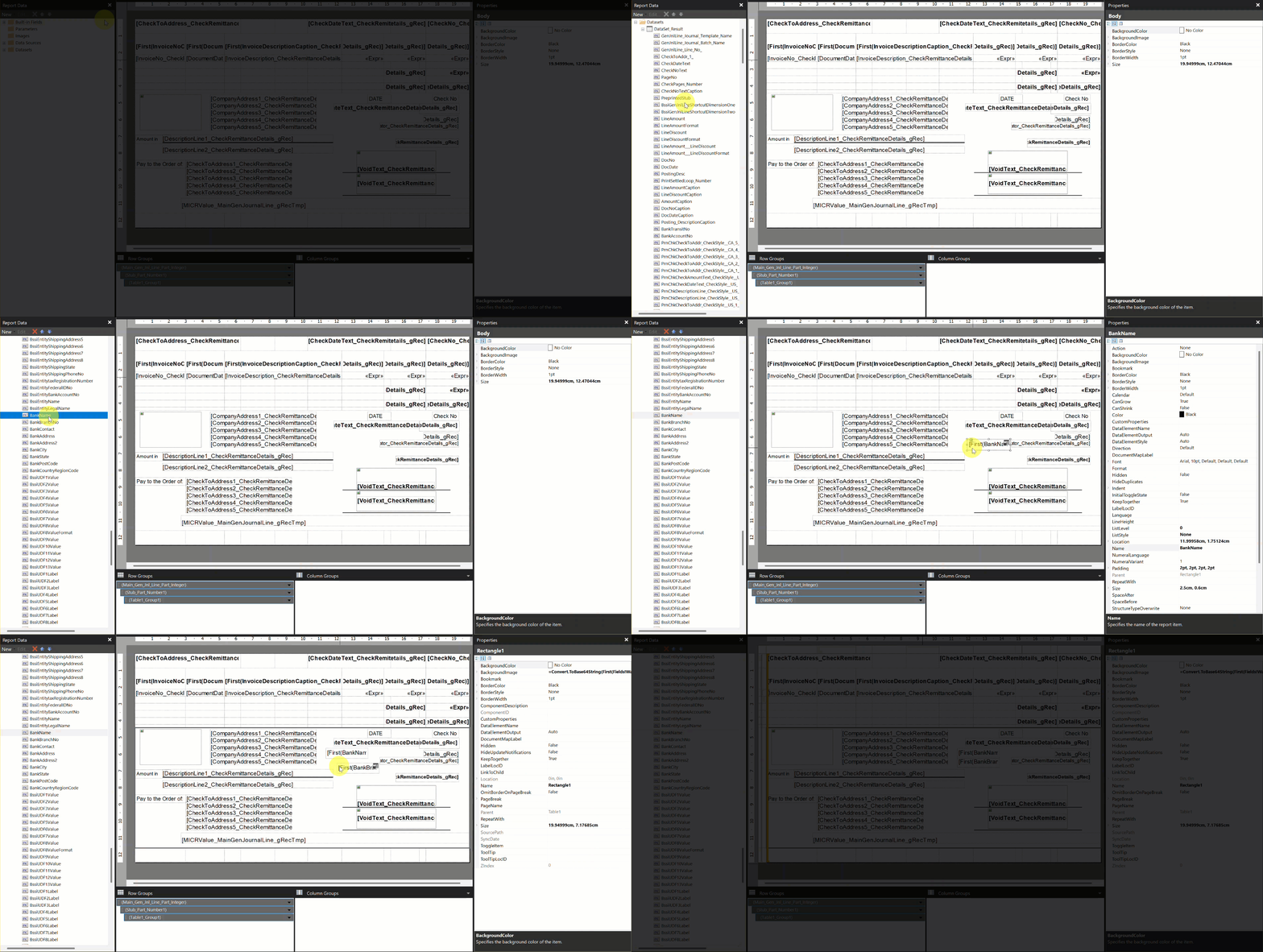
- Open the check report in Microsoft Report Builder.
- Expand the Datasets folder in the Report Data pane.
- Scroll to find the BankName and BankBranchNo properties.
- Drag and drop each field into the respective area on the check report where you want the information to display.
- Adjust any other report fields as needed to ensure fields are aligned.
- Save the report and upload it back to Business Central as a custom layout.
- Test your changes before implementing the new check to production.
Last modified:
November 13, 2025
Need more help with this?
We value your input. Let us know which features you want to see in our products.