


Use Payment Hub to manage bank account preferences that follow the bank account throughout the payment process. If you change the bank account during check printing, the check report and check report layout associated with a bank account automatically update with the correct check report and check report layout to print.
Getting started
Before you begin using this feature, ensure that you have appropriately configured your check reports and check report layouts for each bank account. If no check reports or check report layouts are configured, the system defaults to standard Business Central settings.
How it works
Once configured, the feature integrates automatically into your payment processing workflow through the Payment Journal. When you adjust the bank account for an entry, Business Central automatically determines the correct check report and check report layout to print when you prints checks.
To demonstrate this process, we are going to first establish the check reports for two bank accounts:
| Bank | Bank No. | Check Report |
|---|---|---|
| World Wide Bank | Checking | Check/Stub/Stub |
| World Wide Bank | Savings | Stub/Stub/Check |
- In the Payment Journal, create a payment using a bank account.
- Set Bal. Account No. to Checking.
- Print the check (Check > Print Check).
- In the Print Check options page, note that the assigned check report displays in the title (e.g., Check/Stub/Stub). If a check report layout is attached, it will reflect in the Report Layout field.

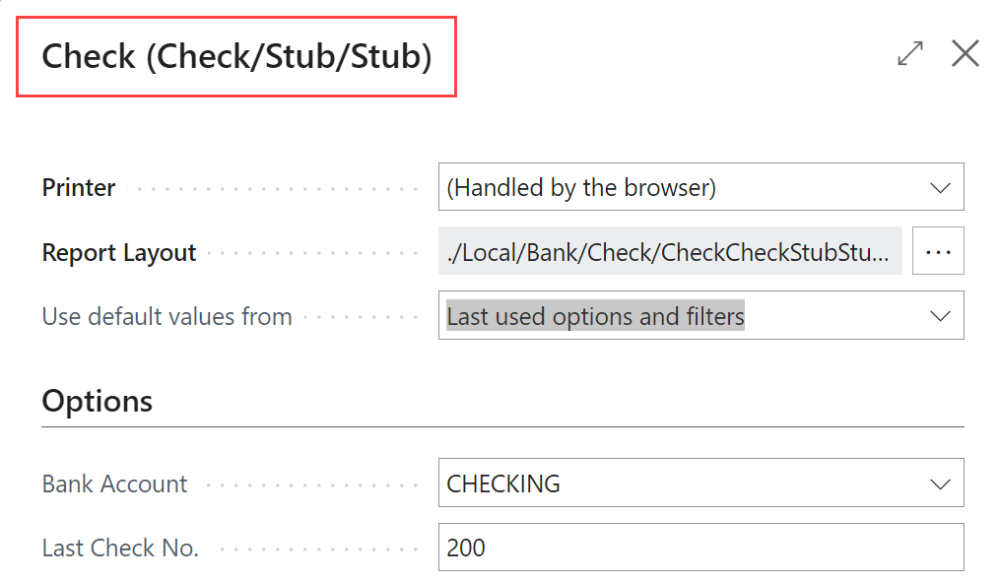
- Return to the payment line and change your Bal. Account No. to Savings.
- Print the check again.
- Confirm that the check report updates to match the new bank account (e.g., Stub/Stub/Check).

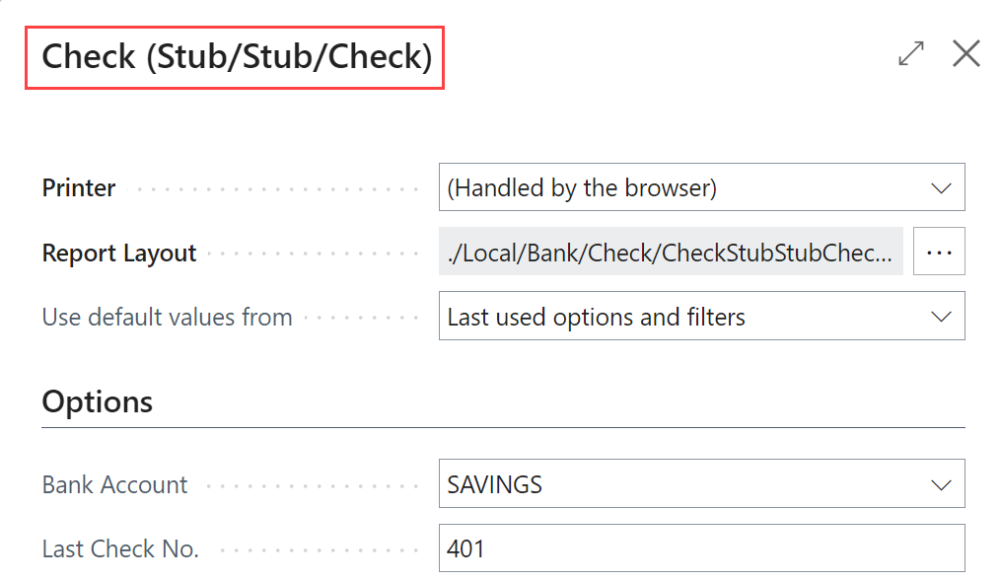
Note: When you have multiple payment lines with different bank accounts, the print settings use the first listed payment line’s preferences. For optimal performance, stick with one bank account per batch.
Need more help with this?
We value your input. Let us know which features you want to see in our products.