


Some Mekorma customers like to feed PDF check copies into their document management system. With Business Central, you can choose to attach a copy of a check to individual payments. If you have check copies configured, automatic check copies generate in Business Central when you process a check. The following rules are in place for check copies:
- Saves as a PDF
- Includes a void watermark
- Removes the MICR line
Check copies are found attached to the payment line of the payment journal as an incoming document. Follow the steps below to view your check copies:
- Enable Archive Check Copies in the bank account card or payment options.
- Follow your standard check processing.
- After your check has processed, open the FactBox pane
![The icon that represents the FactBox.]() .
.
 .
.- Scroll down to Incoming Document Files.

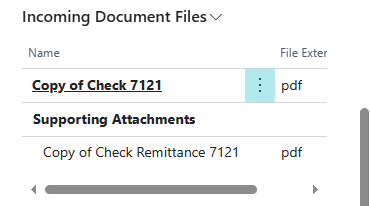
- A PDF copy of the check is attached to each payment line. If an overflow remittance is included, it will be under Supporting Attachments in the Incoming Document Files.
Note: After posting a payment, Business Central stores all payment attachments in the Check Ledger Entries page (Bank Account Ledger Entries > Entry > Check Ledger Entries > Incoming Documents). Copies of checks and remittances are included in these attachments.
Need more help with this?
We value your input. Let us know which features you want to see in our products.