


Business Central offers built-in date formats, but you may need a format that isn’t provided. There are two ways to change the date format on Mekorma check reports:
- Use Business Central’s vendor card date settings (this is a Business Central-native configuration). This uses the standard DateText format, which is all most users need.
- Use Microsoft Report Builder to swap the DateText field for a DateDate field and then edit the date field’s expression to specify a custom format.
The following steps are for option 2:
- Open the check report in Microsoft Report Builder.
- Under the Date field, find CheckDateText_CheckRemittanceDetails_gRec and replace it with CheckDateDate_CheckRemittanceDetails_gRec. This changes the date to a raw format so you can apply your own formatting.

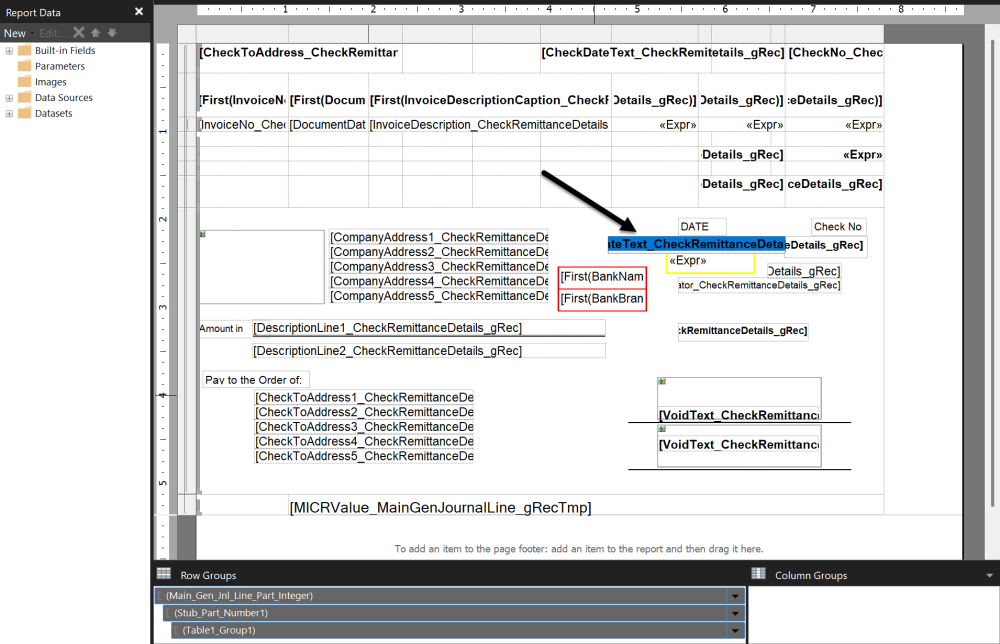
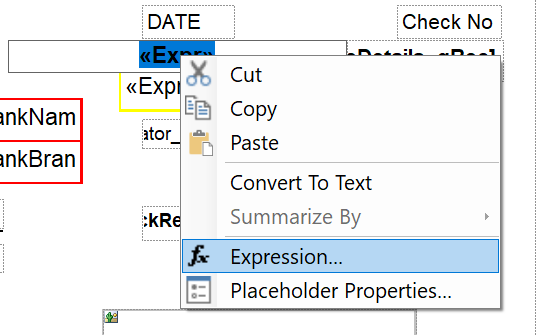
- Right-click the field and select Expression…

- In Set expression for: Value, enter: =Format(First(Fields!CheckDateDate_CheckRemittanceDetails_gRec.Value), “yyyy-MMMM-d”).

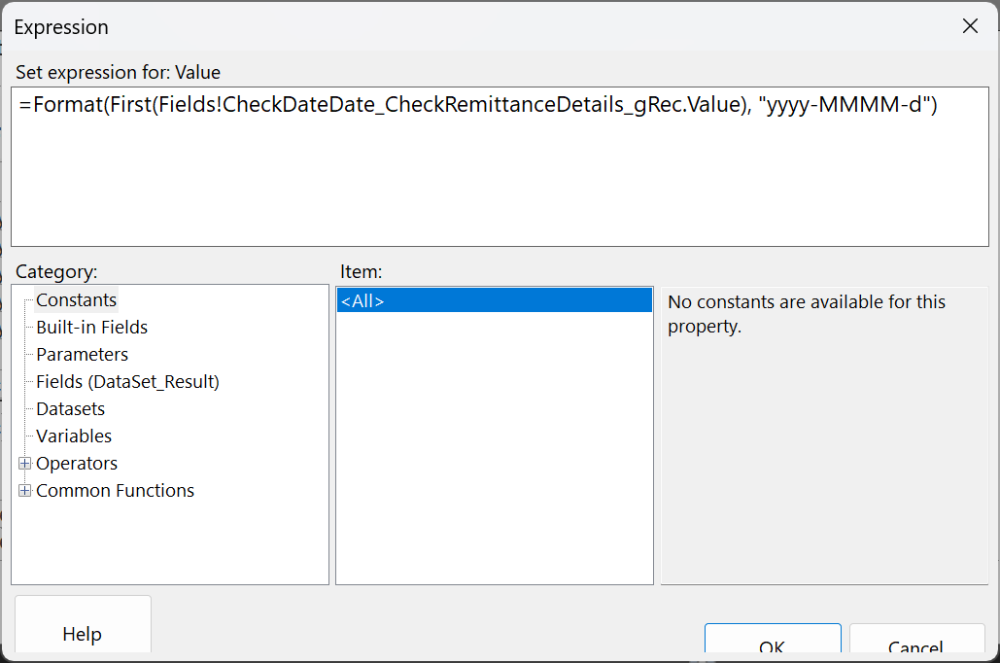
- Adjust yyyy-MMMM-d to the desired date format.
- Click OK.
- Save the report and upload it back to Business Central as a custom layout.
- Test your changes before implementing the new check to production.
Last modified:
November 13, 2025
Need more help with this?
We value your input. Let us know which features you want to see in our products.